
Preface
The “PRTG Group Creator” enables you to create tasks within automations that generate new groups based on user-defined conditions. Depending on the information Qbilon has collected about the IT landscape, multiple groups can be created in a batch. Additionally, multiple group creators can be created to address different PRTG core servers, ensuring monitoring compliance with actual assets across a larger IT landscape. A practical example of use is described here: Automate PRTG Monitoring.Configuration
The “PRTG Group Creator” is one of several PRTG-specific task types that can be found in the “Data Writer” section: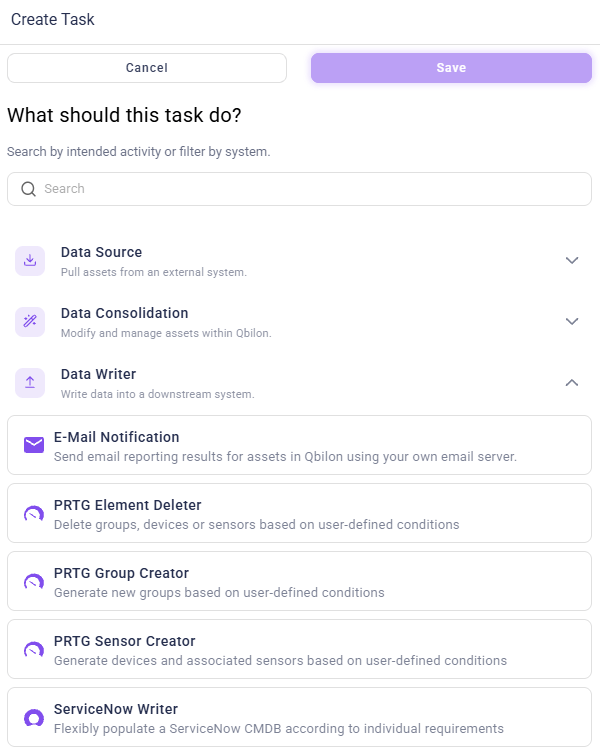
Name and Identifier
This is the name that will be displayed for this task within an automation. This name can be chosen freely. Qbilon automatically generates a valid identifier from the name that does not need to be edited by the user. The name can express which PRTG core the task was created for, for example, if you have several core servers in use.Host und API Token
The host information is required so that the “PRTG Group Creator” knows on which PRTG Core Server it should create groups. The API token must have been created by the user in PRTG and must have full access rights to ensure that the “PRTG Element Deleter” has the necessary permissions to delete the defined assets in the PRTG instance. The API token can be created in PRTG under “Setup → Account Settings → API Keys”: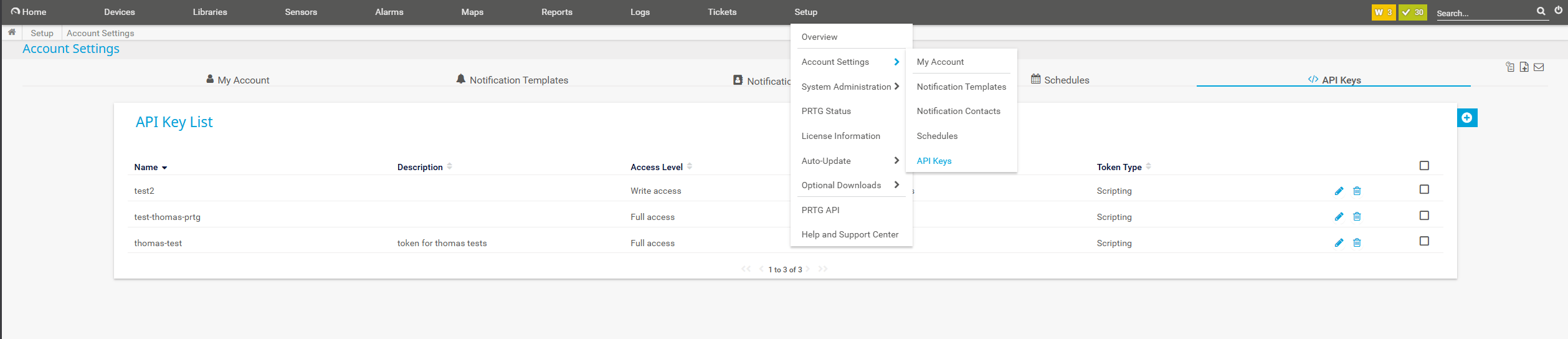
The API token has the same access rights as the user who created it. If possible, use the same user for reading the PRTG data with a PRTG connector. Otherwise, the visible groups, devices, and sensors will differ from what the user who deleted them can see.
Allow Insecure Connections
Select this option if you are running PRTG with a self-signed certificate (the default installation) or if the certificate was issued by an unknown Trusted Third Party Authority that is not traditionally found in the default Java Trust Stores. Otherwise, connection problems may occur.Group ID
Please enter the ID of the group under which the groups shall be created. The ID of the group can be found in your PRTG instance when you navigate to the respective group on the right-hand side together with the status and other high-level information for the group: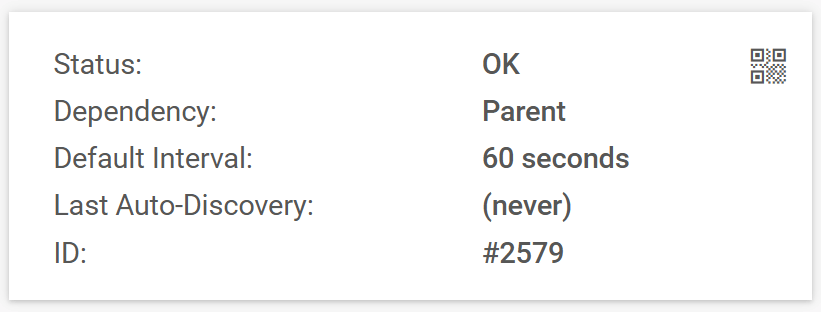
Important: only enter the numerical value of the ID, i.e. WITHOUT the hashtag. Make sure that you do not enter any superfluous spaces.