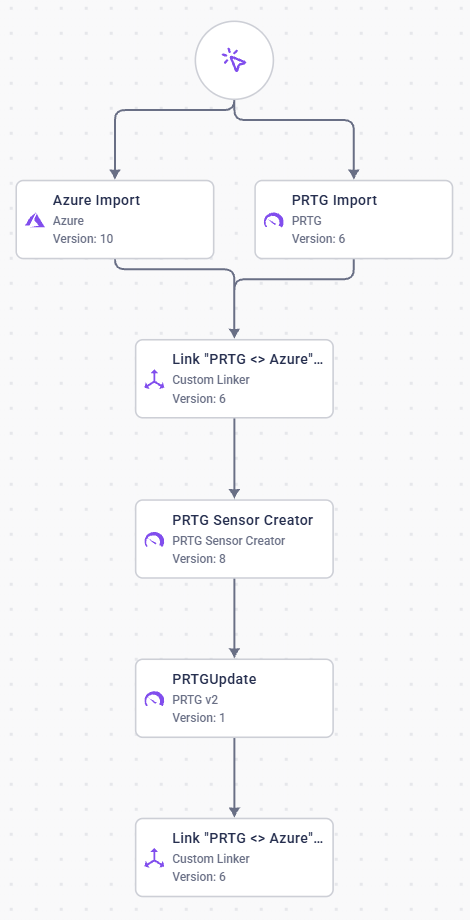
General Process
The general recommended steps for automated device creation in PRTG by Qbilon always looks the same:- All data from the IT landscape to be monitored is recorded.
- Information on the existing monitoring in PRTG is updated.
- Once both pieces of information have been entered into Qbilon, a Custom Linker can be used to generate information about which assets in the IT landscape are already being monitored by a PRTG device.
- Using all this information, all assets in the IT landscape that are to be added to PRTG monitoring are determined, and this process is automated using a PRTG Sensor/Device Creator.
- Finally, the recorded IT landscape can be updated once again.
Automate Azure Monitoring
With Qbilon, you can automatically monitor Azure virtual machines (VMs) using PRTG-specific tasks, such as the PRTG Sensor/Device Creator. The goal is to transfer all Azure virtual machines to PRTG monitoring automatically using an automation. In the following, we want to set up an automation that makes this possible.Initial Data Import
First, we need to ensure that Qbilon is always aware of the latest status of the IT landscape in Azure and the corresponding monitoring in PRTG. To do this, we first create a new automation in Qbilon to which we then add two tasks: One Microsoft Azure task and one PRTG task. How to configure these two tasks is described in detail in the respective documentation. If you have already created an initial setup using the PRTG Setup Wizard, you can skip this step and go straight to the next step. The intended automation should look something like this: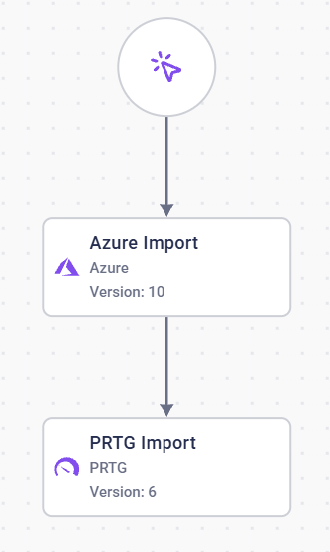
Connecting Azure with PRTG
Next, we need to ensure that Qbilon knows which Azure virtual machines are already monitored by PRTG. To accomplish this, we will create a Custom Linker that links Azure virtual machines with PRTG devices if their public IP addresses are the same. The configuration for this can look like this:Link “PRTG ⇔ Azure”
LinkDevicewithAzure Virtual MachinewhenPRTG Host (text)equalsPublic IP Address (Text)withmonitors
Automating PRTG
Before automating the creation of devices using Qbilon, we must first create a new group in PRTG and provide it with the Azure credentials corresponding to the sensors. Detailed instructions for this can be found in the PRTG manual. Then, the ID of this group can be used in the PRTG Sensor/Device Creator to create devices for monitoring Azure VMs. Now that everything is prepared, the next step is to add a PRTG Sensor/Device Creator to the automation. This will automatically add new devices and their corresponding sensors to our PRTG instance. The values for the individual configuration parameters can be found in the task documentation. For the “Group ID” configuration parameter, enter the ID of the group that was previously created. For the “Type” parameter, ensure that you only create devices and sensors for Azure Virtual Machines that you want. For example, if devices have not already been created, you should limit the creation of devices, which can be easily regulated by the previously created “monitors” edge. The type configuration parameter could be set as follows: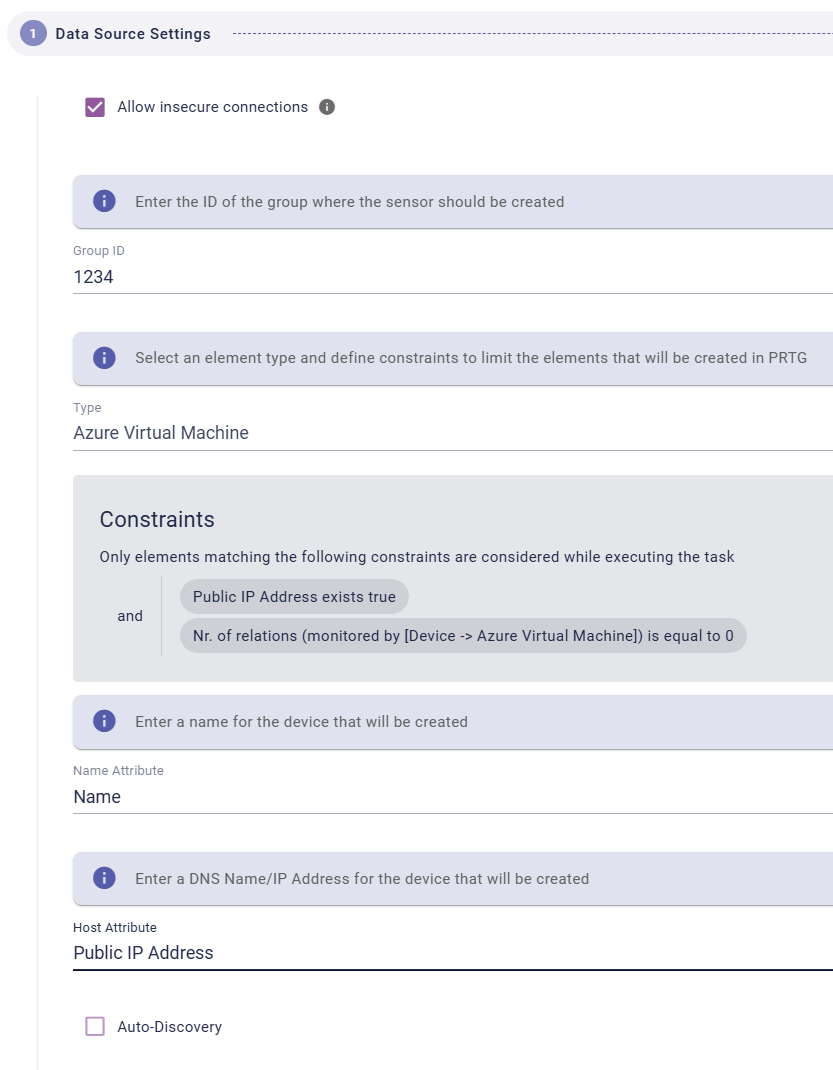
Updating Data
If the automation runs as described above, all devices and sensors are created automatically as desired. However, without further action, the information in Qbilon is outdated. Currently, there are devices in PRTG that are not yet displayed in Qbilon because the devices were created after the last PRTG data source run. To avoid this, simply add the two steps “PRTG” and “PRTG ↔ Azure” to the automation to update the data. A final automation would look like this: