
General

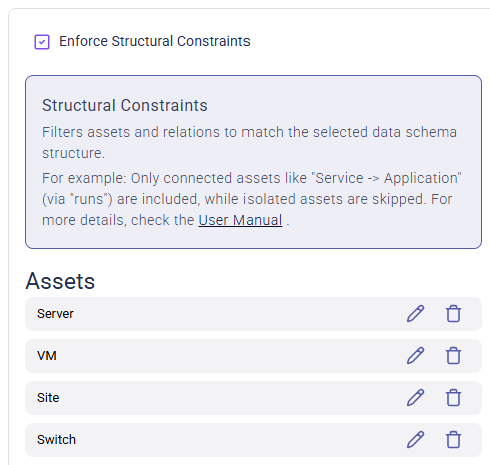
The “Enforce structural constraints” checkbox in the top left-hand corner (above “Assets”) allows the user to exclude from the resulting diagram view those assets and relations that do not match the selected “pattern” within the data schema displayed on the right-hand side. This represents the structure that results from the specifically selected assets and relations.
Structural Constraints: General
Location of the “structural matching” feature within the diagram creation.

Example

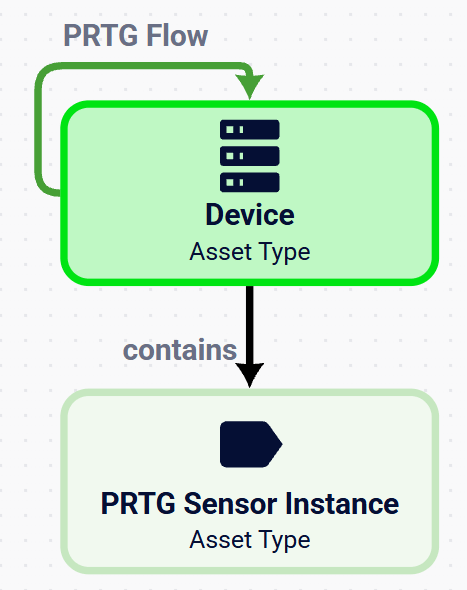
We create a diagram view with the following definition in order to see all of PRTG’s “Sensor Instances”, “Devices”, “contains” dependencies between them as well as “PRTG Flow” relations between “Devices” (all green assets & relations).
Structural Constraints: Example
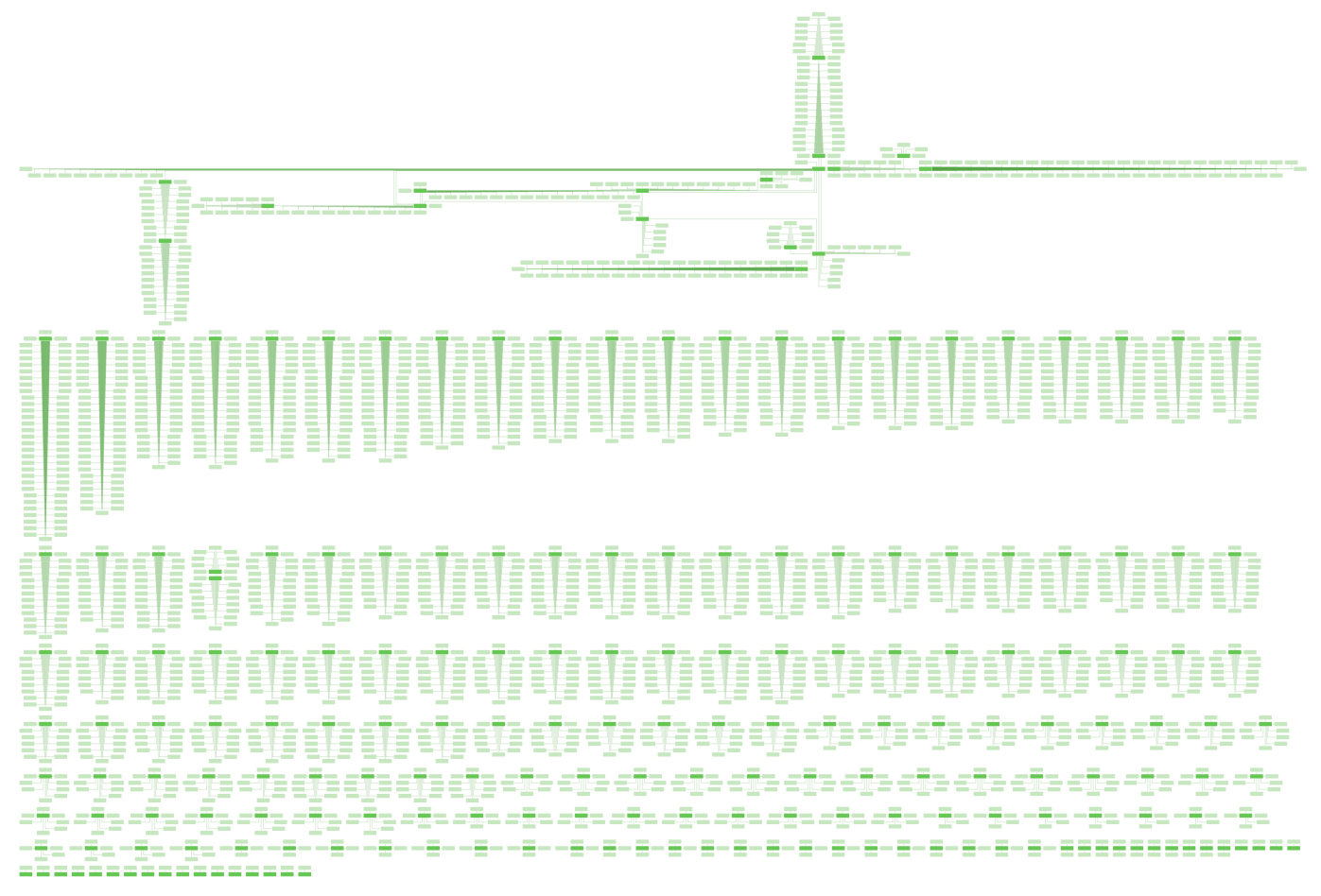
An example diagram view definition Without using the “Enforce structural constraints” feature, the resulting diagram looks like the following as simply all “PRTG Sensor Instances” and “Device” instances are included (regardless if and how they are connected by relations).
Structural Constraints: Example
A diagram view without enforced “structural matching” When “Structural Matching” is enabled, the shown diagram is heavily reduced as only those assets and relations are displayed that are connected like defined by the “pattern”. This structure corresponds to the assets and relations that were selected from the data schema. For the above example, this means:
  • “each ‘PRTG Device’ is connected via at least one incoming or outgoing ‘PRTG Flow’ relation with another ‘PRTG Device’” and
  • “each ‘PRTG Sensor Instance’ has at least one incoming ‘contains’ relation from a ‘PRTG Device’”.
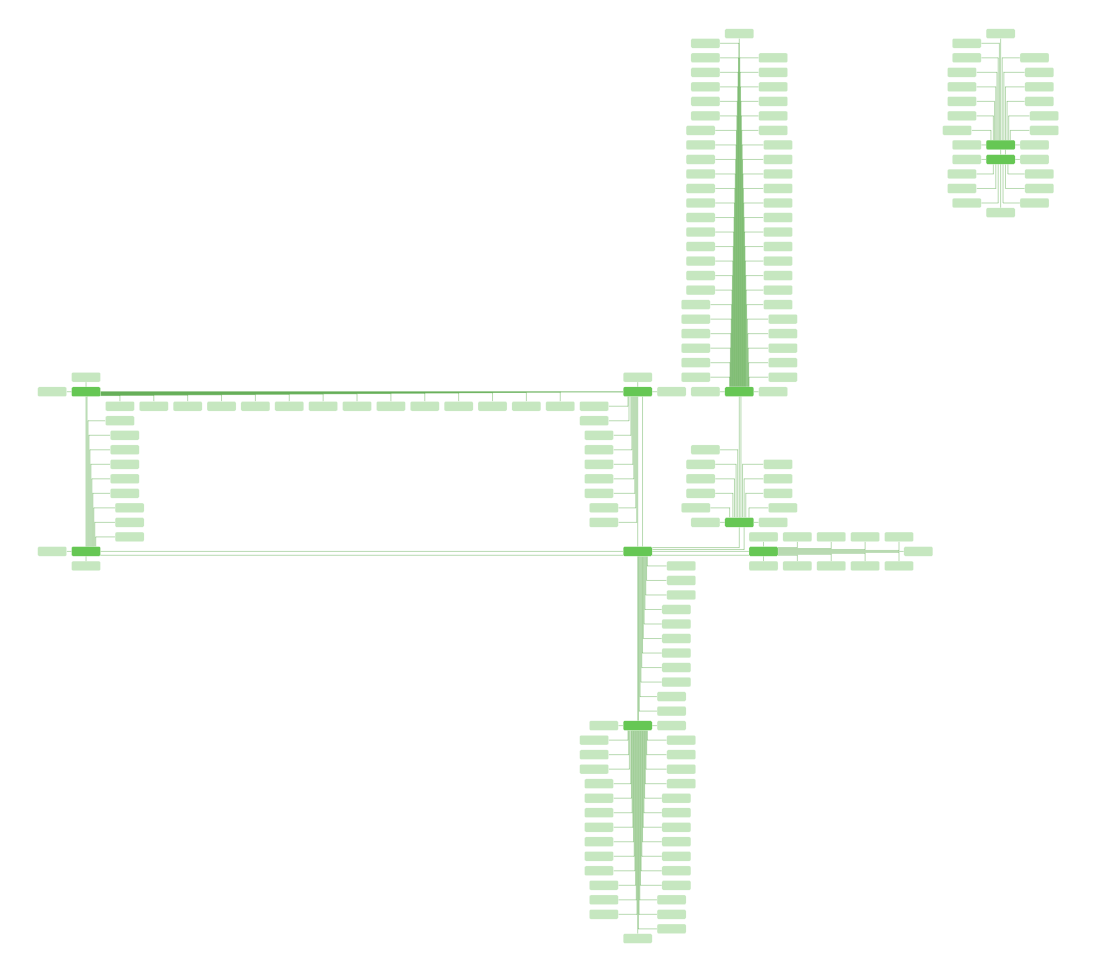
As a consequence, any “isolated” assets and “cropped” asset clusters will be ignored in the resulting diagram view.
Structural Constraints: Example
The same diagram view with enforced “structural matching”