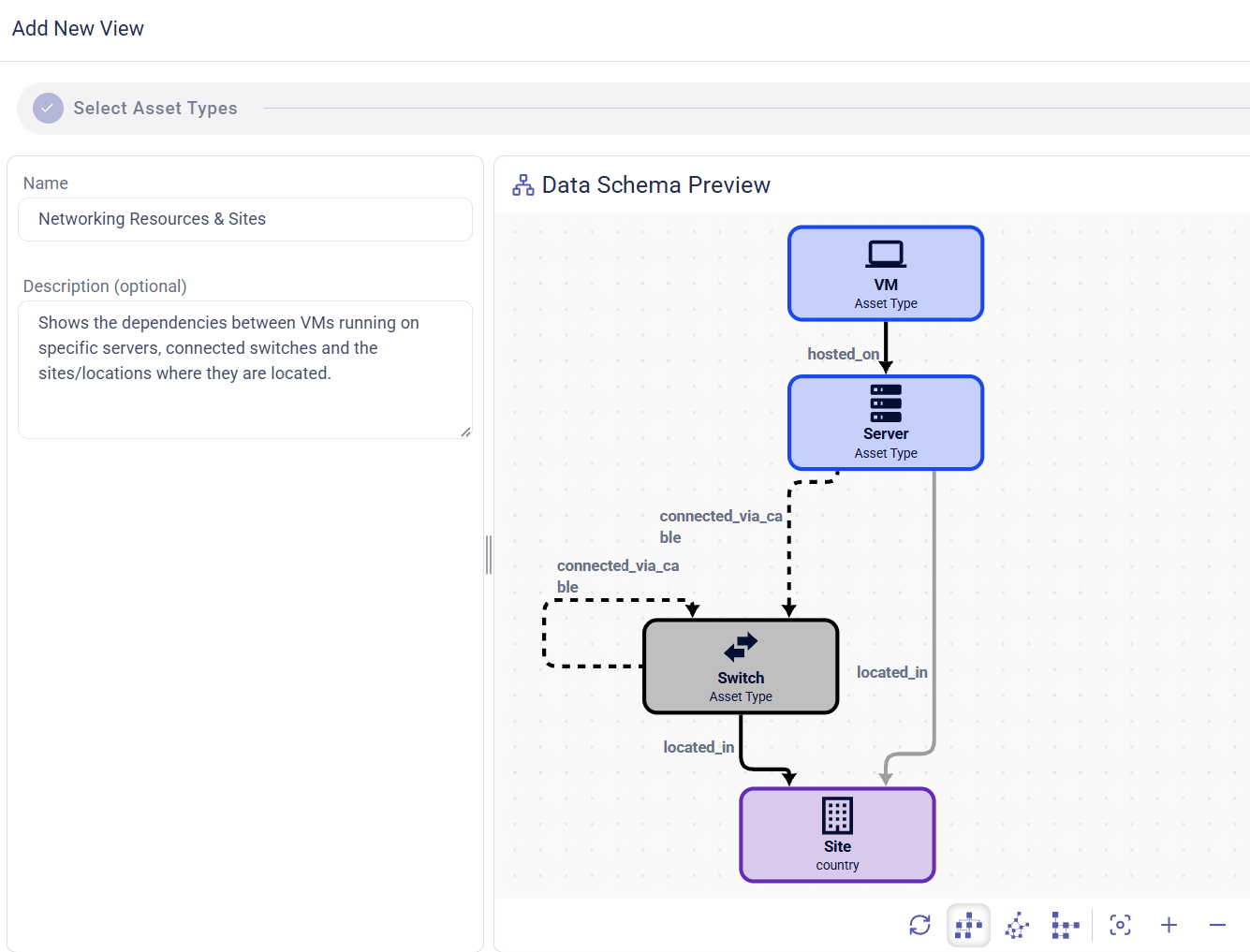
+” button at the top of the Diagrams List in the Custom Views section.
Adding Assets & Relations
Assets can be added via …- right-clicking on an asset/relation in the data schema and selecting
+ Add [...]or - left-clicking on an asset/relation in the data schema and selecting
Add +in the emerging configuration panel on the left side.
Multi-selection
Multiple assets/relations can be selected by holding theShift key and then …
- by clicking on each asset/relation individually or
- by holding down the left mouse button and drawing a selection rectangle around the desired assets/relations.
Add Selected Assets in the emerging context menu.
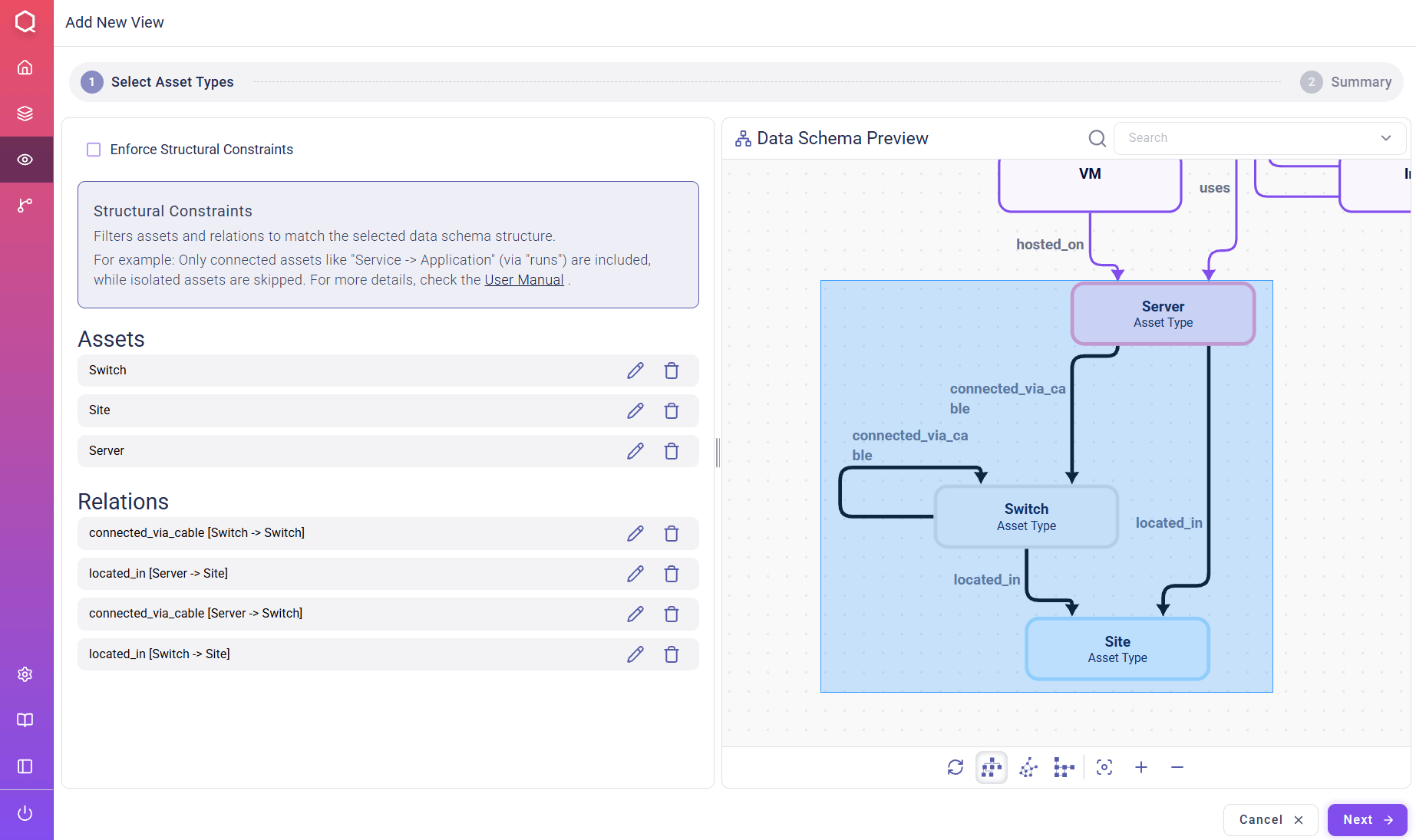
Shift key while defining a new view
Similarly, it is also possible to remove the selected assets.
Adding a relation
A single relation can be added by directly clicking on it. Its source and target assets will be automatically added too.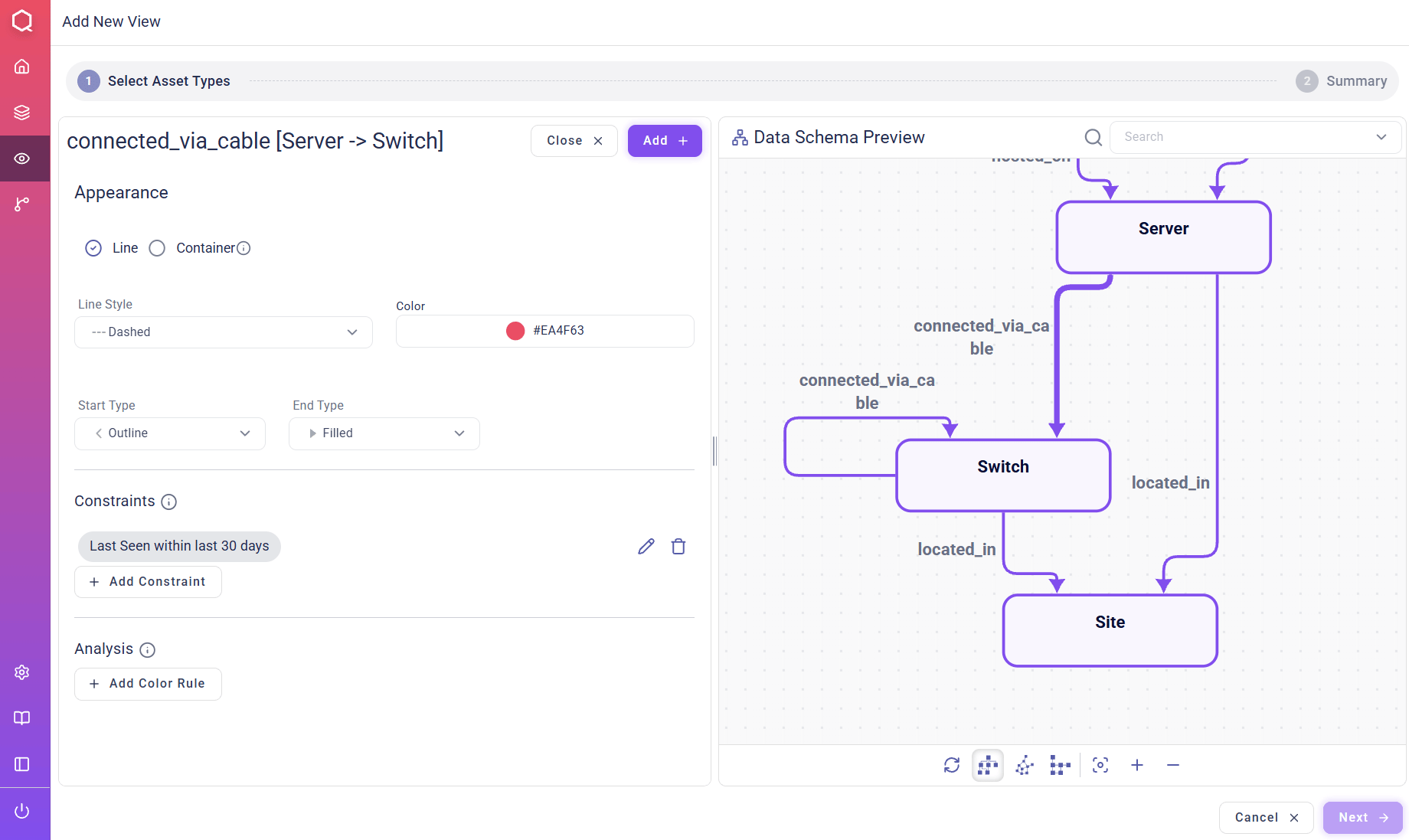
Adding an asset
A single asset can be added by directly clicking on it.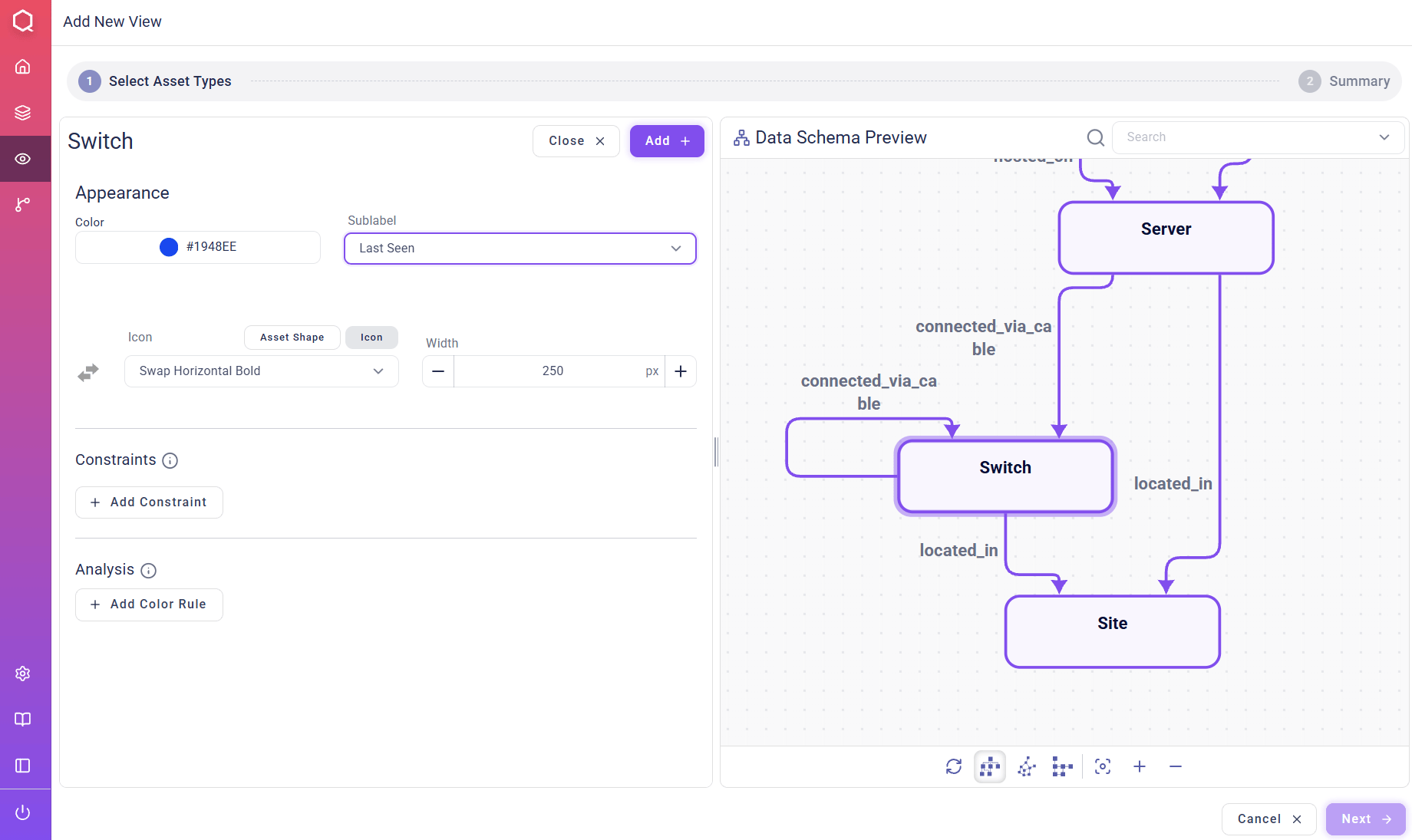
Changing Asset Appearance
Color picker The color of assets can be changed using the color picker.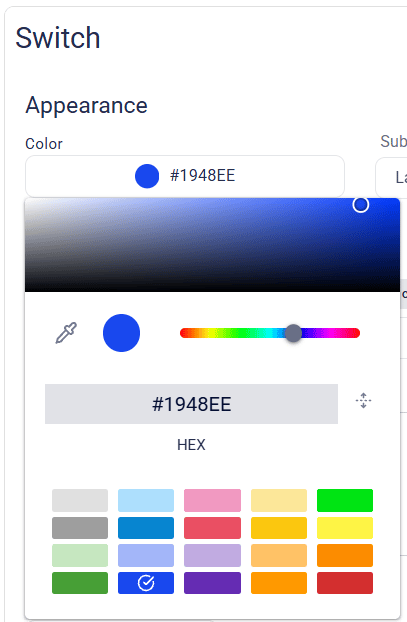
Icon tab.
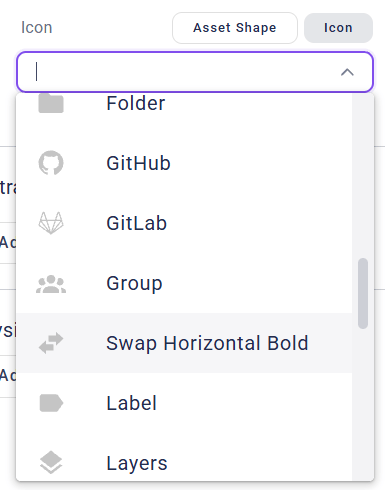
Width.
Changing Relations’ Appearance
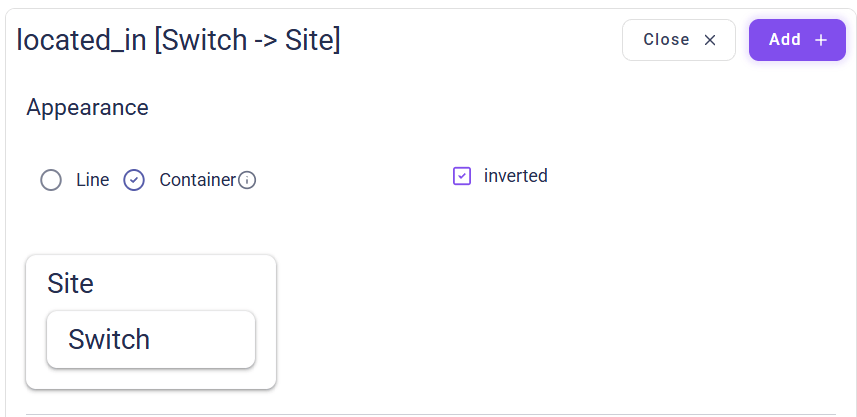
“Line” vs. “Container” Relations can be shown as lines or containers (nested/hierarchical boxes). If “Container” was chosen, the source assets of the relation are shown as “group assets” that contain the target assets of the relation.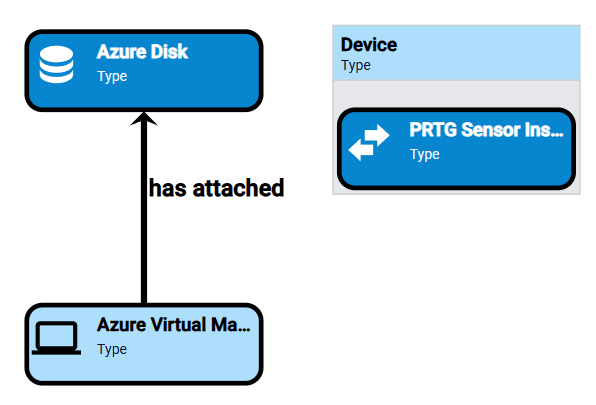
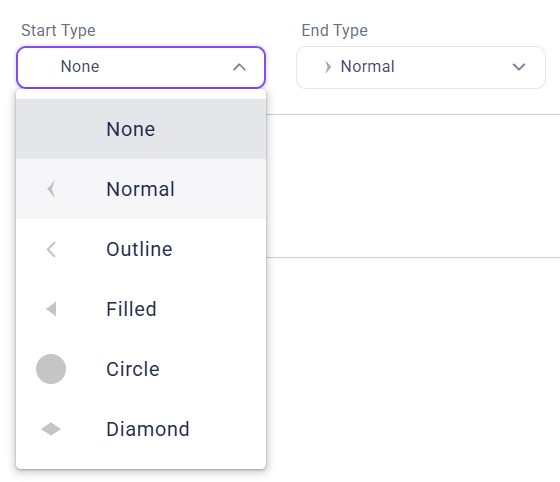
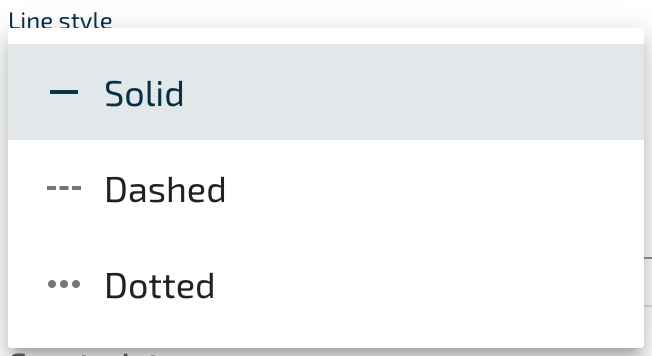
Solid, Dashed and Dotted.
Structural Matching
The functionality of the “Enable structural matching” checkbox is described here: Structural Constraints.Constraints & Analysis Rules (Coloring)
It is also possible to optionally define constraints and analysis rules for the selected asset/relation types.- Constraints: show only asset/relation instances that fulfill the constraints.
- Analysis: asset/relation instances appear in the selected color if they fulfill the defined conditions.
AND/OR), multiple conditions for one constraint or analysis rule can be created.
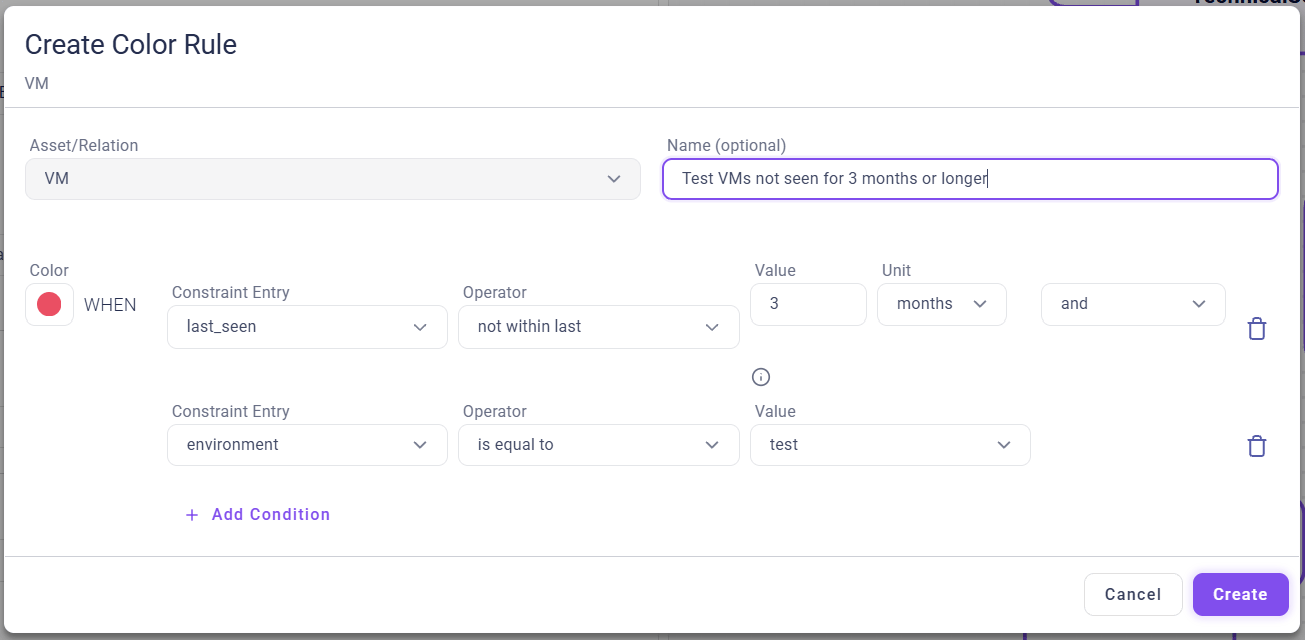
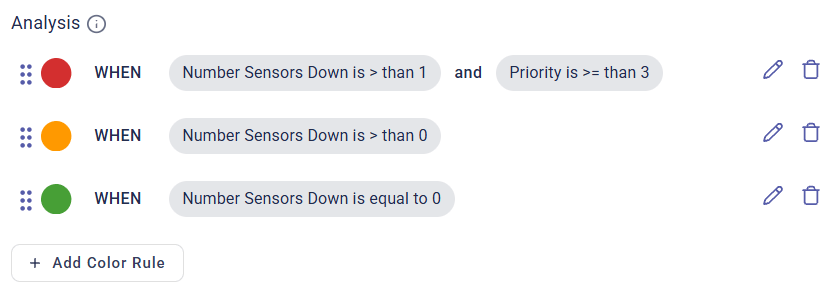
Diagram View Summary
In the “Summary” step, the final data schema of the diagram view is shown. As a last step, a name and an optional description for the view can be defined.