Overview
The “Centralized Variables” feature allows you to manage specific values in one place. These values can then be reused by different tasks within the automation engine. This feature simplifies the maintenance of configuration data, especially for frequently changing data, such as passwords that are rotated regularly.General
An overview of all variable groups is available by navigating to theAutomations section and selecting Variables. Only administrators have the rights to create, delete, and update variables and variable groups on this page.
Variable Groups Overview
The variable groups table displays the following information:- Name: The name of the variable group.
- Created At: The creation date of the group (e.g., “Jan 10, 2025, 15:30”).
- Used by Tasks: A list of all the distinct tasks in which one or more of the group’s variables are currently being used. Clicking on an entry in this column will direct the user to the corresponding automation.
- Last Used: The date the variables within the group were last accessed.
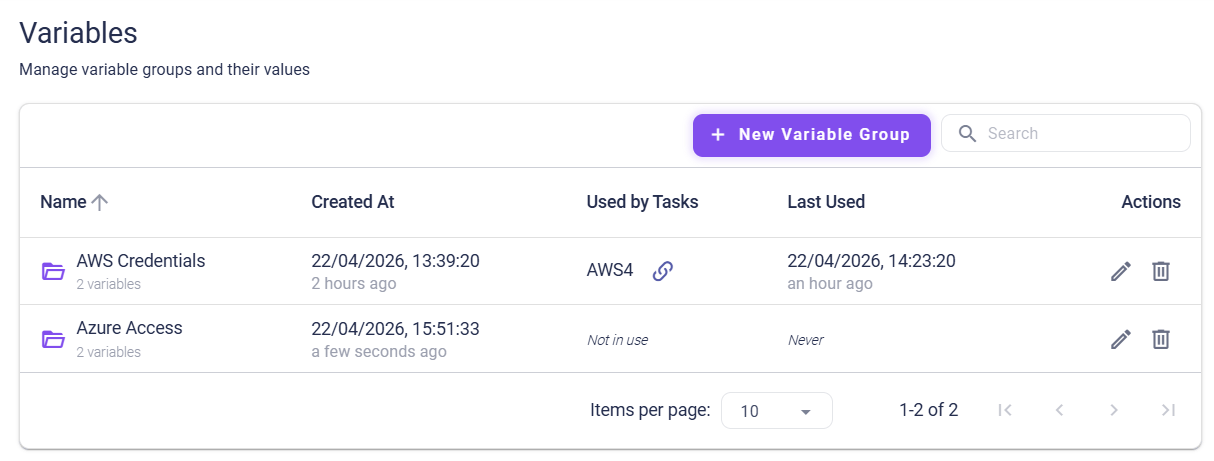
Variables page showing a data table of variable groups. The table includes columns for Name, Created At, Used By, and Last Used Actions. A search bar is visible at the top, along with a +New Variable Group button.
The table supports searching for variable group names and descriptions. Additionally, the columns for Name, Created At, and Last Used are sortable.
Managing Variable Groups
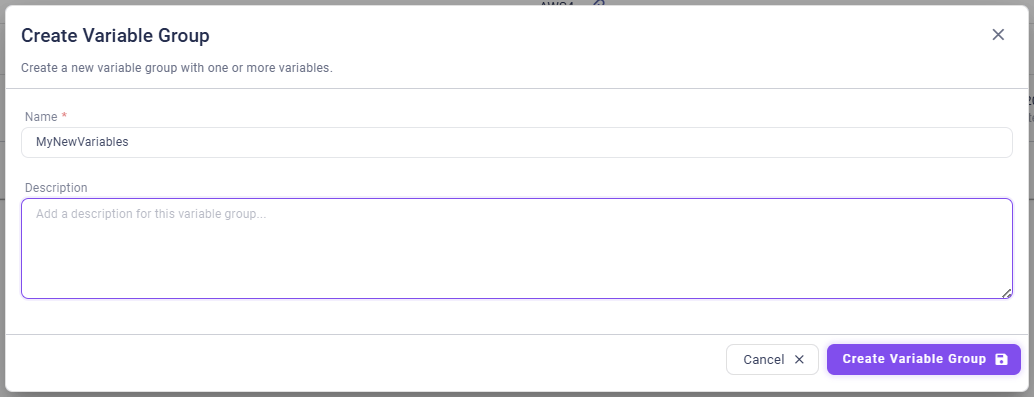
Clicking the+ New Variable Group button opens a dialog box that allows users to create a new variable group and define its variables.
Variable Groups Configuration
Name: Variable groups may have arbitrary names but must be globally unique.Description: Can contain an arbitrary value to describe the group’s purpose.
Variables Configuration
Within a group, multiple variables can be defined.Name: Must be unique within the specific variable group.Value: Must not be empty.Secret: If the “secret” option is checked, the value of the variable is visually masked. These values are encrypted at rest using secure encryption algorithms. To view the value, users can click the “Eye” icon to reveal it.
Variable Group: input fields for the group’s Name and Description and below a list of variables with fields for the specific Name and Value, and a checkbox for Secret. A badge indicates if a variable is Used by Tasks.
Deletion Rules
Specific deletion rules apply to prevent errors when running automations:- Variable groups: Groups cannot be deleted if they contain any variables that are currently in use.
- Variables: Individual variables cannot be deleted as long as they are being used in at least one task.
Using Variables in Automations
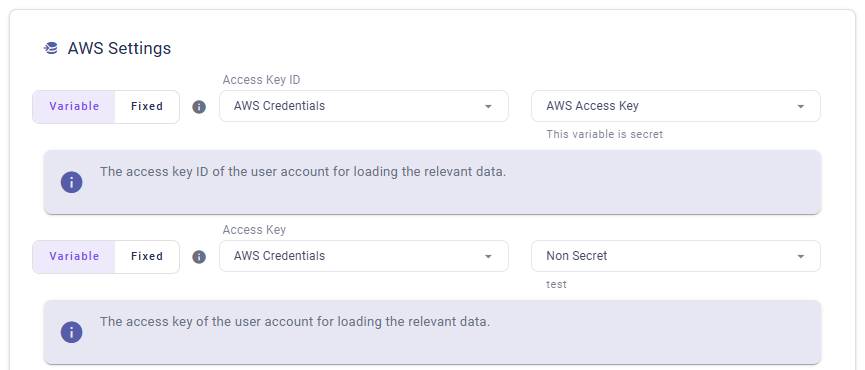
Users can utilize these centralized variables when configuring tasks in the automations section. This functionality is available exclusively for URL and text configuration parameters.Configuration Steps
- Navigate to the
Automationssection and create or edit a task. - In the configuration dialog for URL or text parameters, the tab chooser allows you to switch between fixed (standard input) and variable.
- Select
Variableto display the selection fields. - Select
Variable Group: Search for and select the desired group. - Select
Variable: Once a group is chosen, select the specific variable from the dropdown menu.