
Preface
Thanks to the new Custom Task Templates (CTTs) feature, you can now create and manage your own task templates in Qbilon. This feature gives you the flexibility to define exactly how your custom tasks should look and behave, right down to the configuration parameters and how they’re presented when someone creates a new task. With Custom Task Templates, you can tailor Qbilon to your unique automations. Rather than relying solely on Qbilon’s default templates, you can create your own for specific use cases, such as connecting to new data sources, consolidating data, or writing data elsewhere. This results in less manual setup, fewer mistakes, and a smoother, more personalized experience when creating tasks.Creating CTTs
Now, let’s walk through how you can create your own custom task template. You’ll find all the necessary tools under theTask Templates page in the Automations section.
-
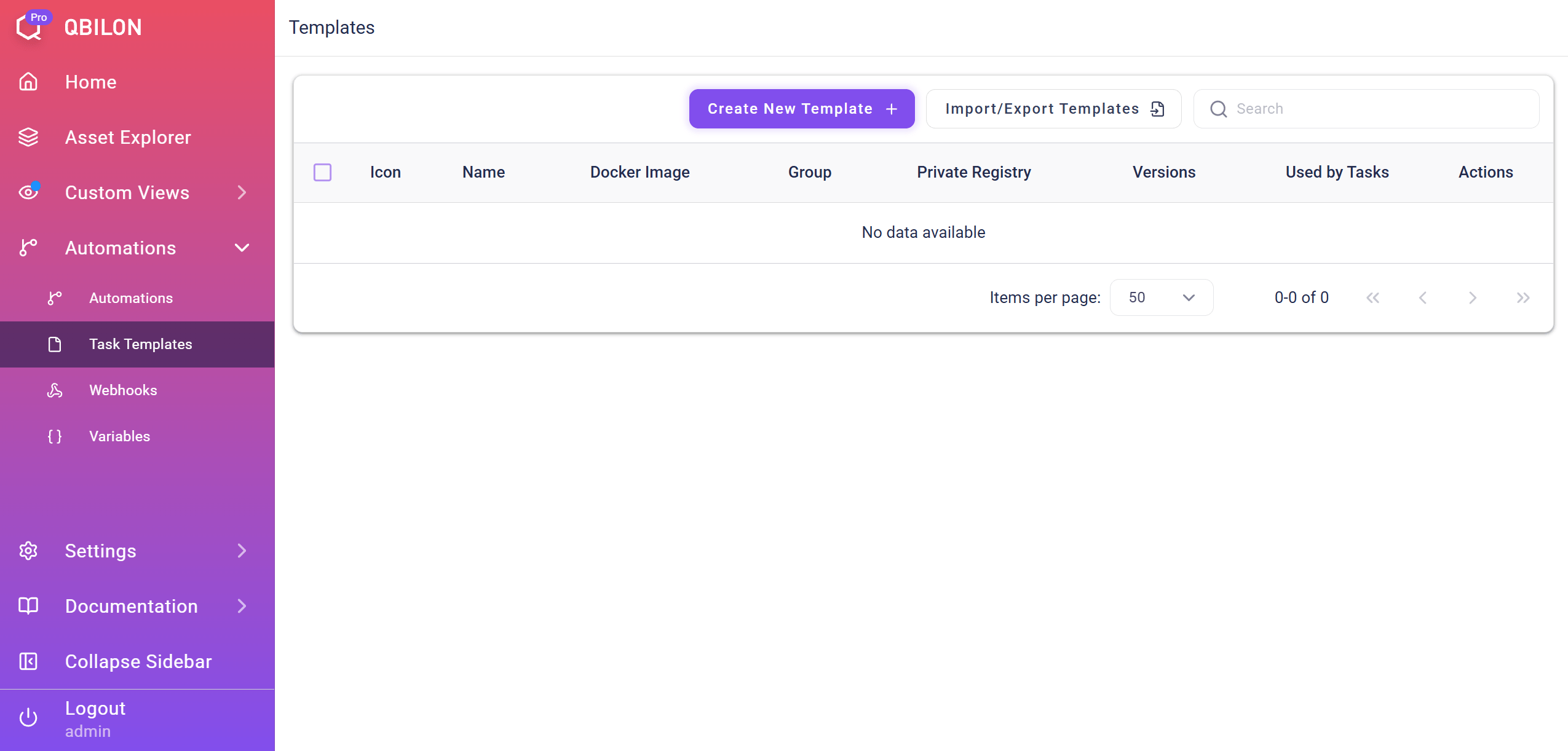
Go to “Automations → Task Templates”
- You will see a list of all your custom templates. Note that you can only manage your own templates here, not the ones provided by Qbilon.
-
Click “Create New Template”
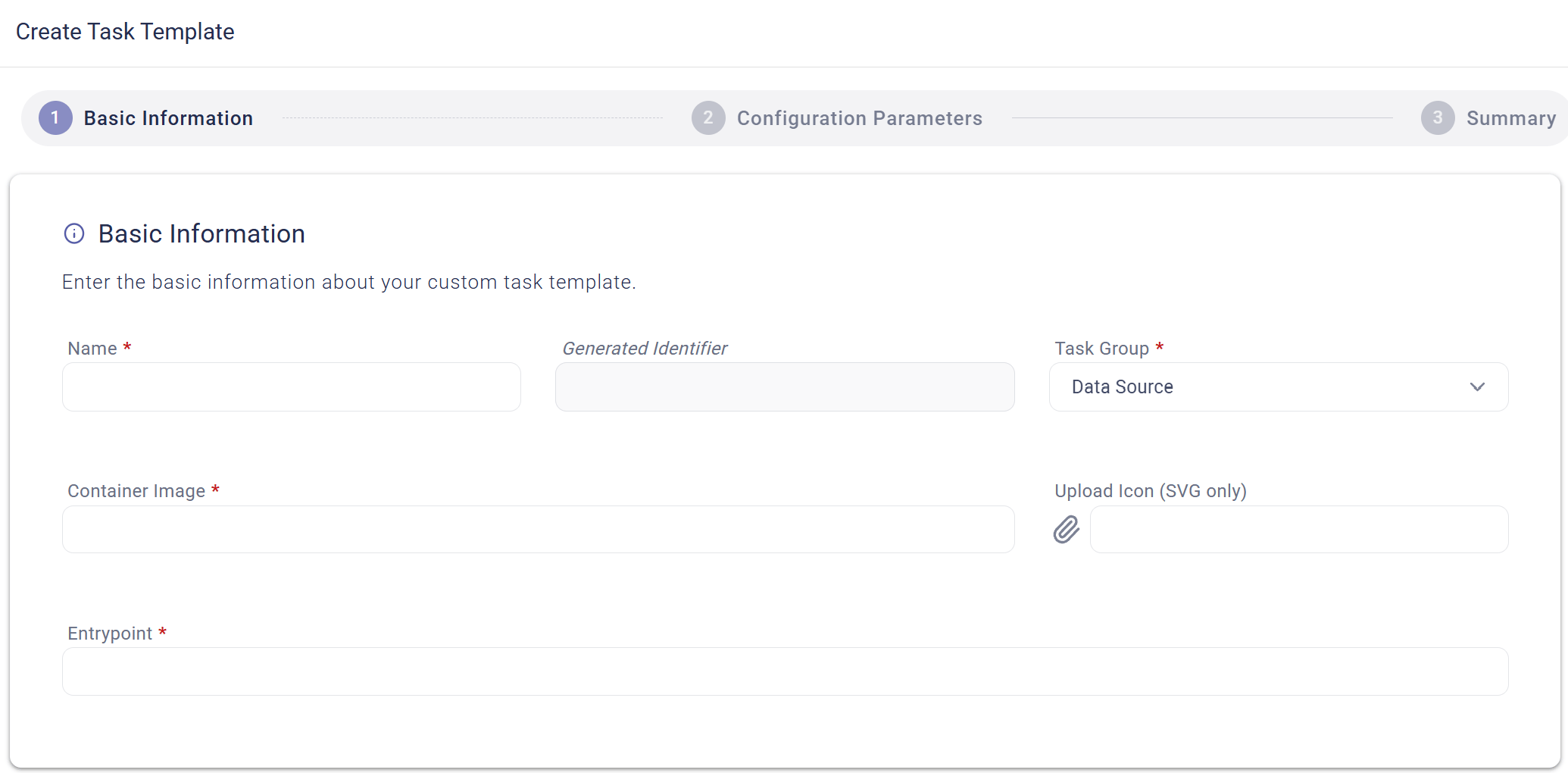
- This opens the template creation form.
-
-
Basic Information
- Name: Give your template a clear, descriptive name.
- Task Group: In the data section, there are three groups into which you can put your task template. Choose one of the following groups:
Data Sources,Data ConsolidationorData Writer - Container Image: Enter the Docker image to be used for this task, including the tag. For example, enter
sanfteschorle/aws:v1. - Upload Icon: Select an icon to represent your template. Currently, only .svg files are allowed.
Do not use thelatesttag for versions as this might hinder the automation engine from detecting the correct image entrypoint after an update and break your custom task. Always use explicit tags, e.g.,v1or something similar- Entrypoint: The command that runs when the container starts is defined by the
ENTRYPOINTand/orCMDdirective. If both are present, Docker appendsCMDtoENTRYPOINT, soCMDacts as default arguments. Docker file:
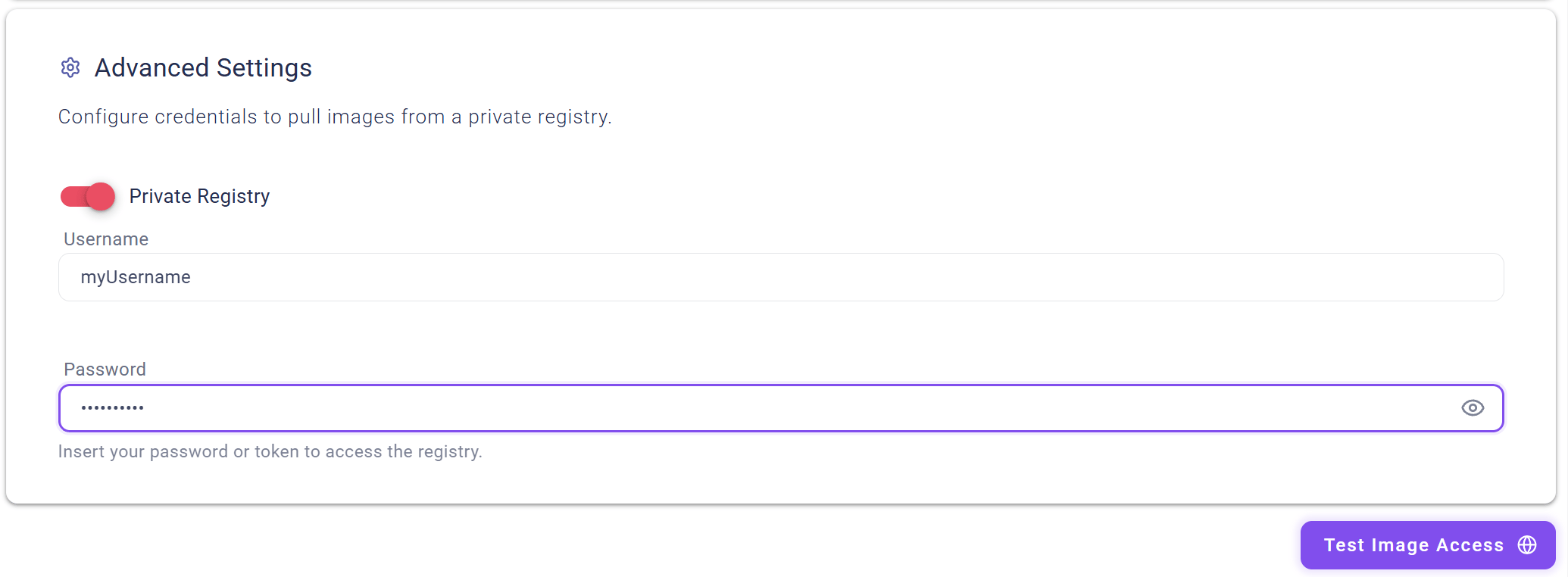
→ in Qbilonpython /app/my_script.py --default-arg4. (Optional) Advanced Settings- If you want to pull an image from a private registry, you have to toggle the switch
Private Registryand provide the credentials (username and password) here. - The validity of the provided credentials can be tested via the
Test Image Accessbutton on the bottom right corner. -
- Define Configuration Parameters
- You can add as many configuration parameters as you need here. These parameters make your template dynamic. When someone creates a task from your template, they’ll be prompted to fill out these parameters. The value provided by the user for a specific parameter will then be injected as an environment variable into your Docker image at runtime.
-
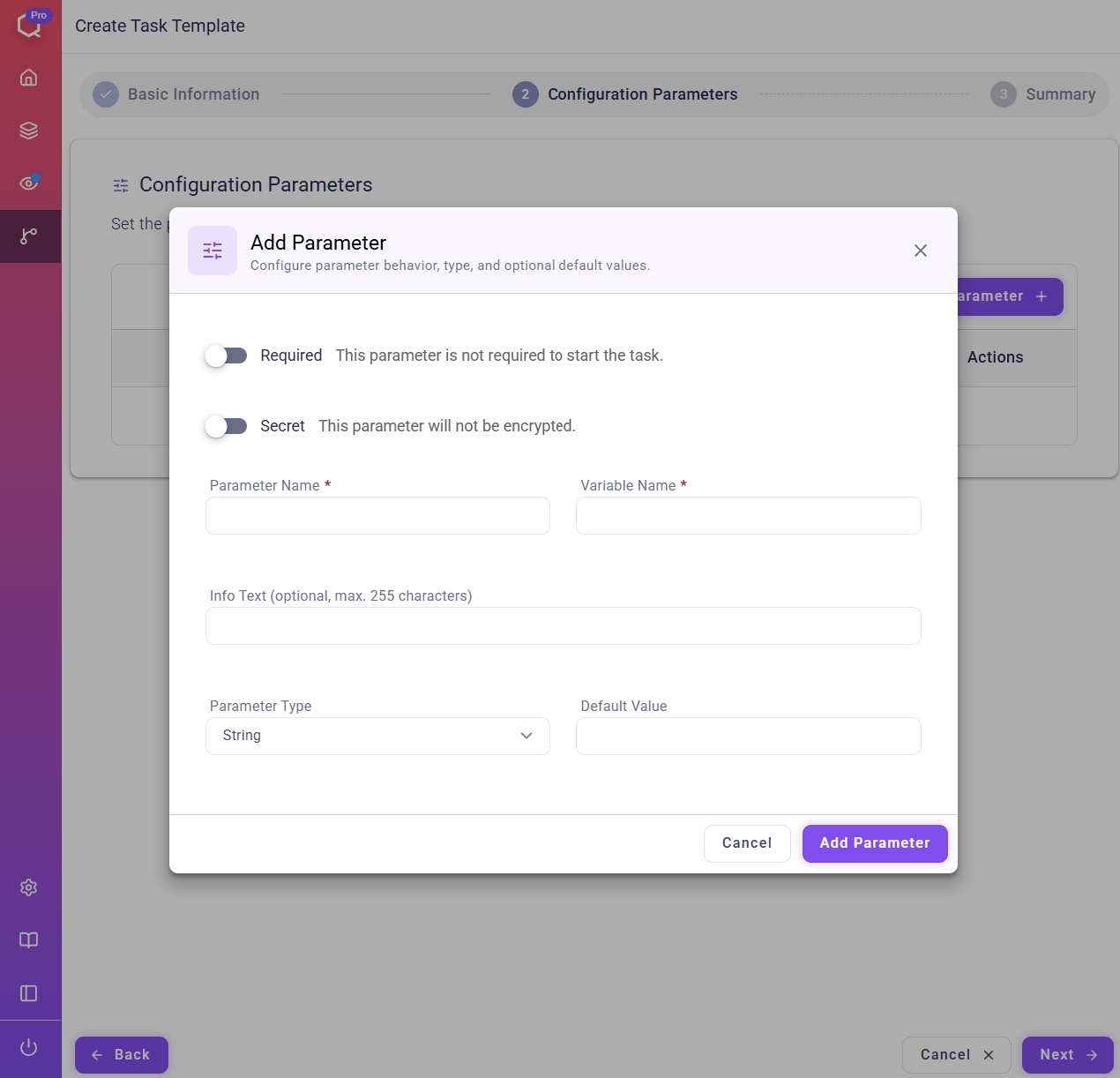
- For each parameter, you’ll need to specify the following:
- Display Name: How this parameter will appear in the UI.
- Variable Name: The name of the environment variable passed to the Docker container.
- Note: There are reserved environment variable names by Qbilon that can not be used as variable name:
QB_HOSTQB_ORCHESTRATOR_HOST(deprecated)QB_TASK_ID
- Note: Variable Names have to be unique within one task template!
- Note: There are reserved environment variable names by Qbilon that can not be used as variable name:
- Required: Decide whether this parameter must be filled out when creating a task or not.
- Type: Choose the type that best fits the parameter. The following types are currently supported:
| Type | Task Template & Task Visualization | Representation in Custom Tasks | Additional Information |
|---|---|---|---|
| String | 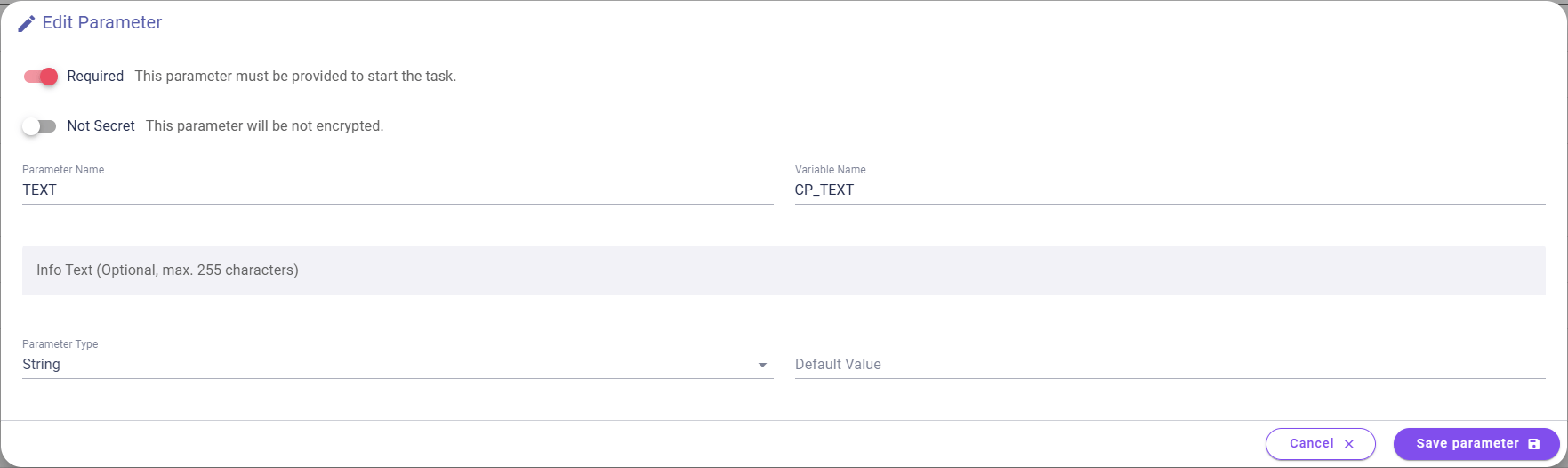  | CP_TEXT=Some Text | Default Value: The value displayed to users by default for this configuration parameter when creating a task from this template. This field may be left empty. |
| String (Secret) | 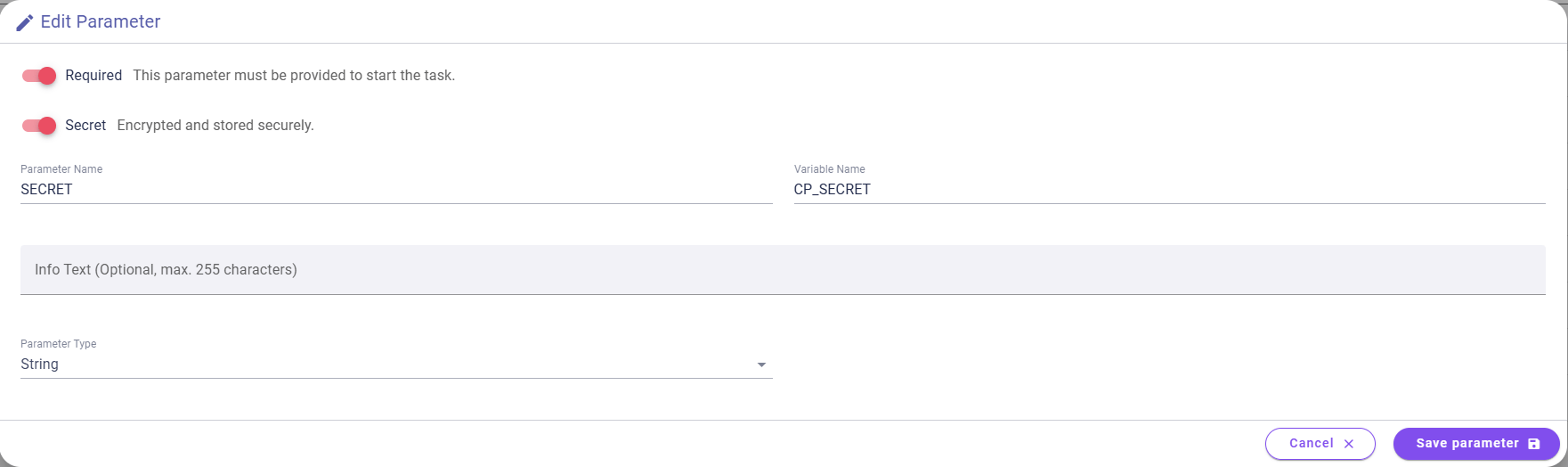   | CP_SECRET=Some Secret | Secret: When set to true, the text value provided by the user will be both obfuscated and encrypted when stored in the database. |
| URL |  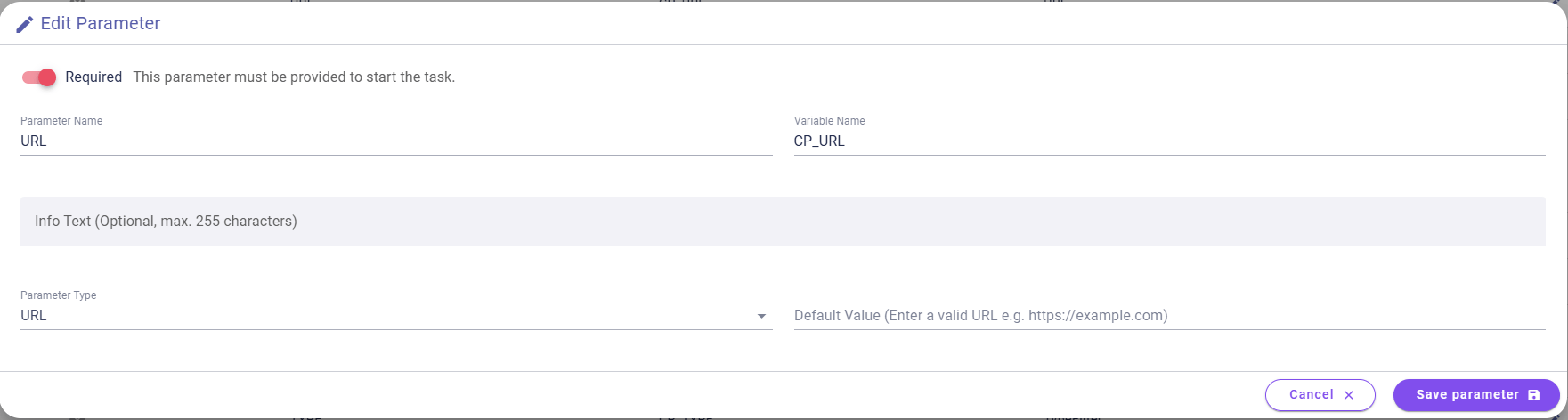 | CP_URL=https://test.test | Default Value: The value displayed to the user by default for this configuration parameter when creating a task from this template. It may be left empty. If provided, it must be a valid URL. |
| Boolean | 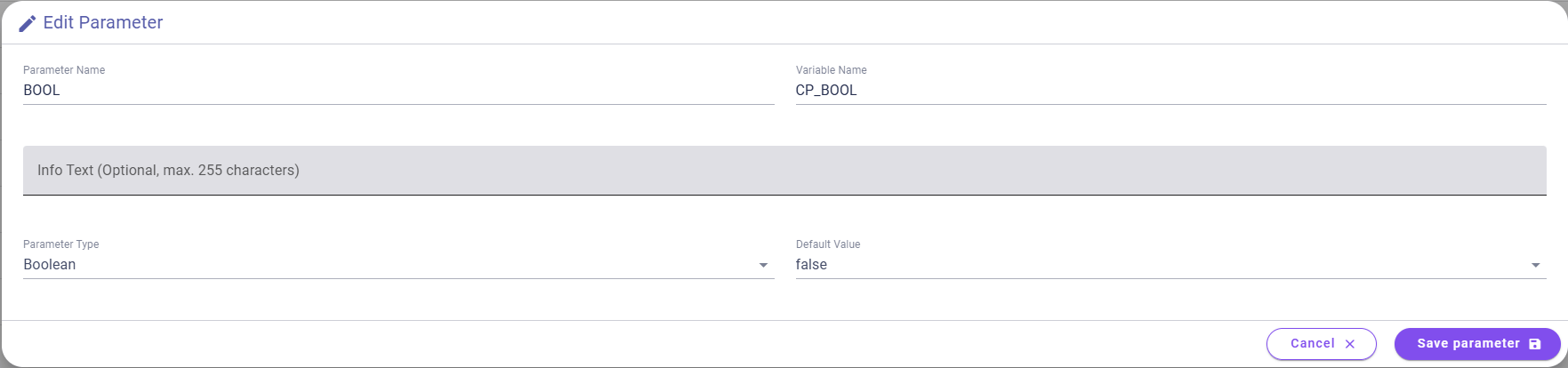  | CP_BOOL=false | Default Value: This is the value that is displayed to the user by default for this configuration parameter when a task is created from this template. This field may be left empty. |
| Number |  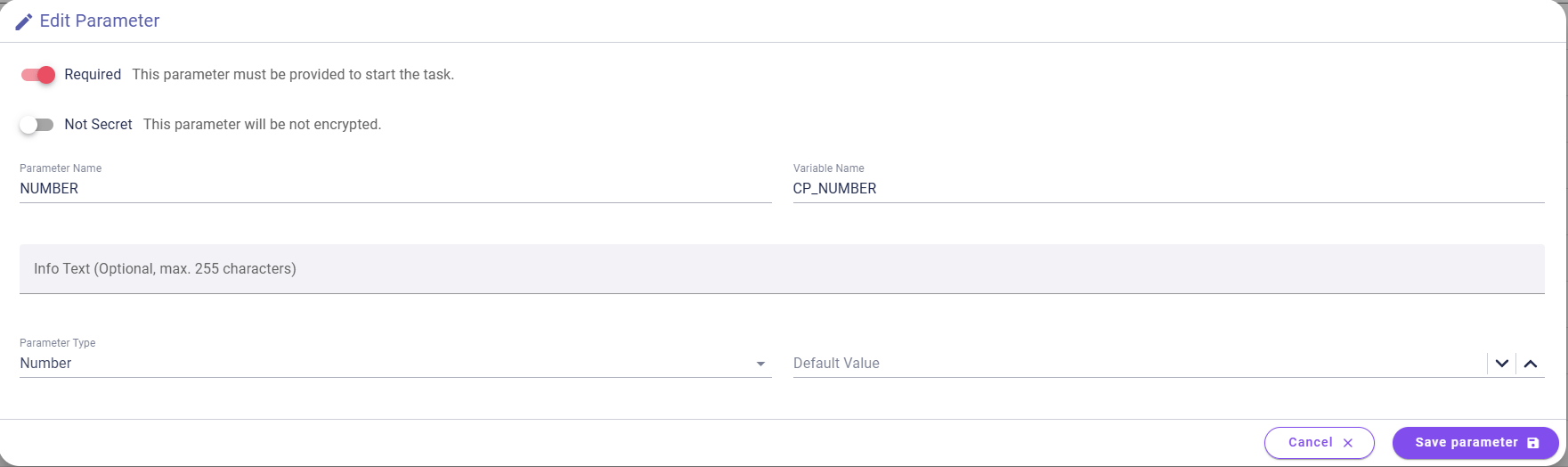 | CP_NUMBER=123 | Default Value: The value displayed to the user by default for this configuration parameter when creating a task from this template. It may be left empty. If provided, it must be a number. |
| Select |  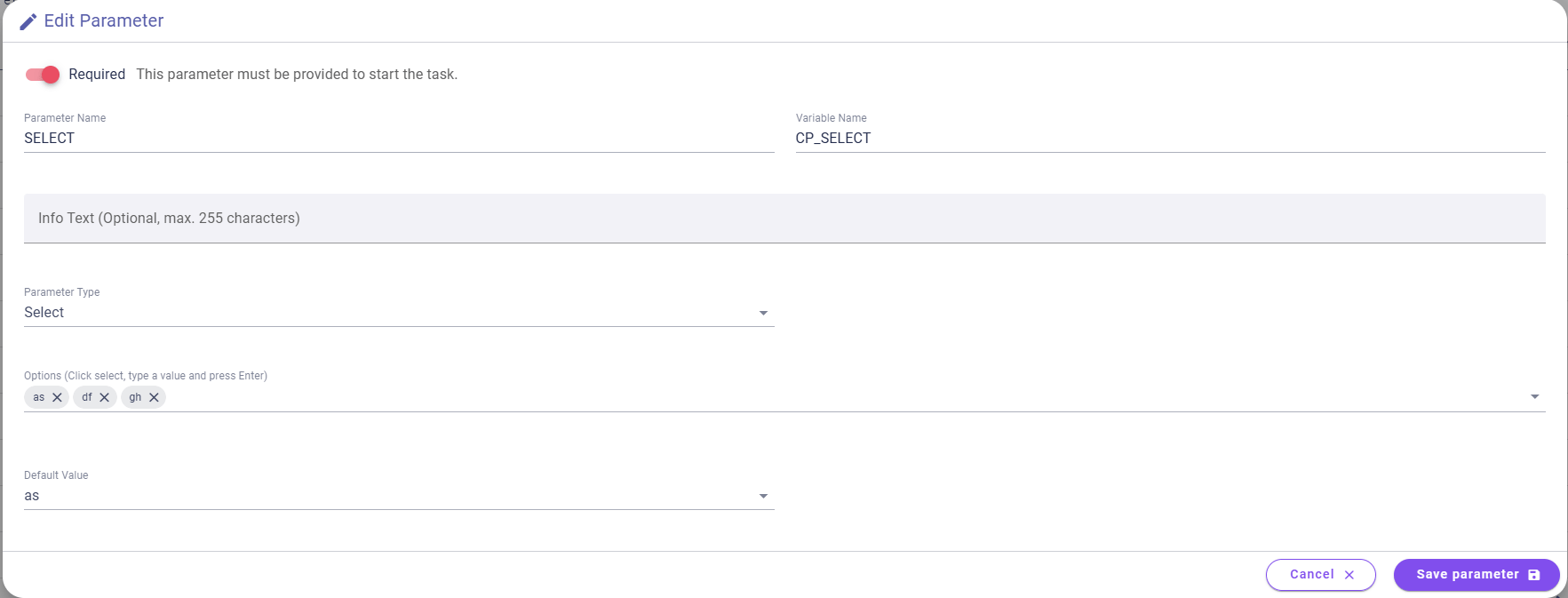 | CP_SELECT=as | Options: a list of possible values for this configuration parameter. Default Value: This is the value that is displayed to the user by default for this configuration parameter when a task is created from this template. It must be one of the available options. Users can select only one option. |
| Multi-Select |  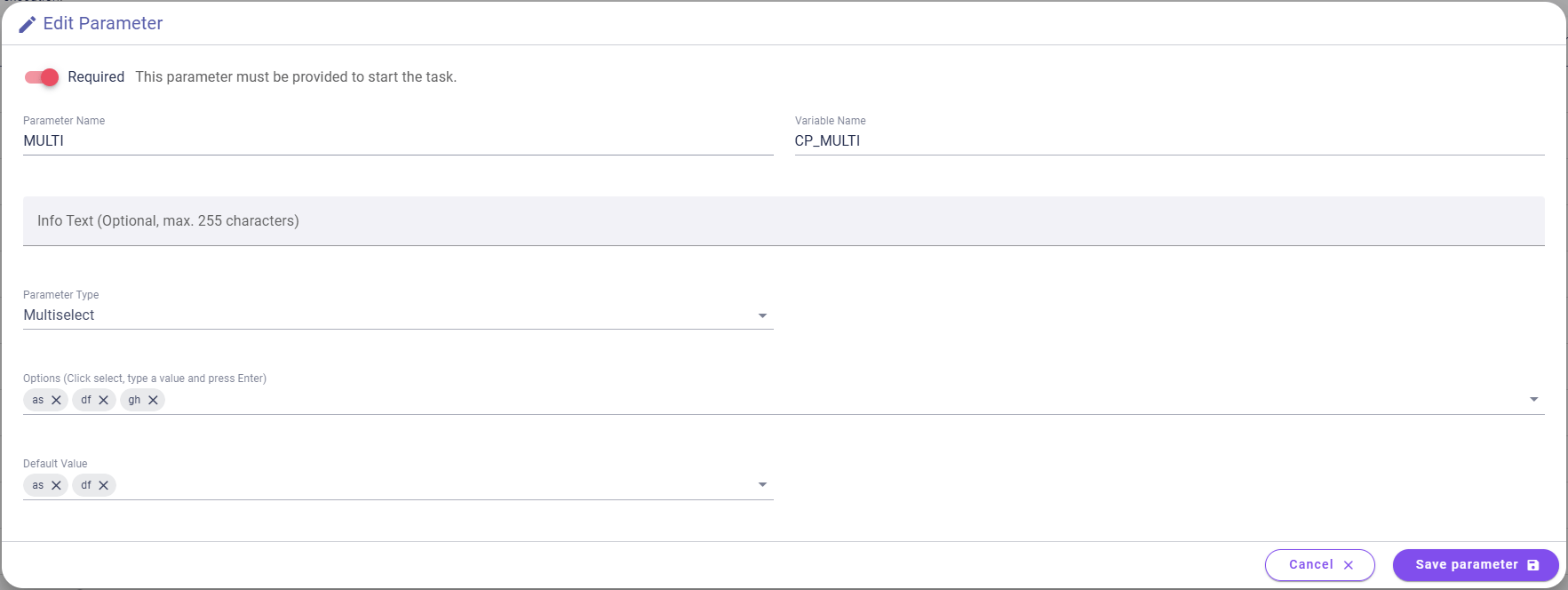 | CP_MULTI=as,df | Options: a list of possible values for this configuration parameter. Default Value: This is the value that is displayed to the user by default for this configuration parameter when a task is created from this template. It must be one of the available options. Users can select multiple options. |
| CSV | 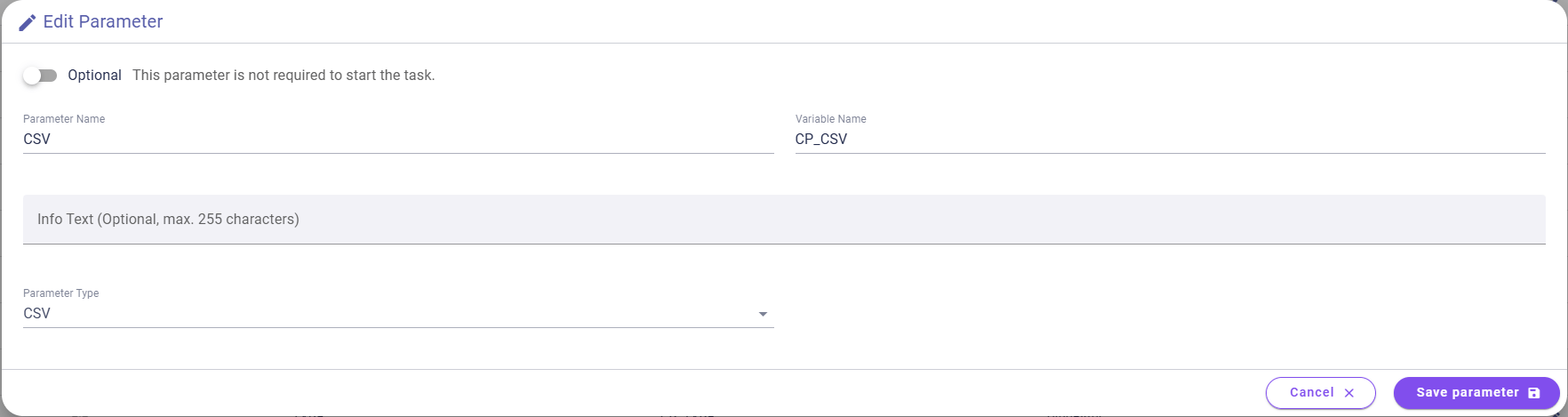   | CP_CSV=ITFA.csv | Currently, only CSV files are allowed. This will be enhanced later to support different file types. |
| Markdown | 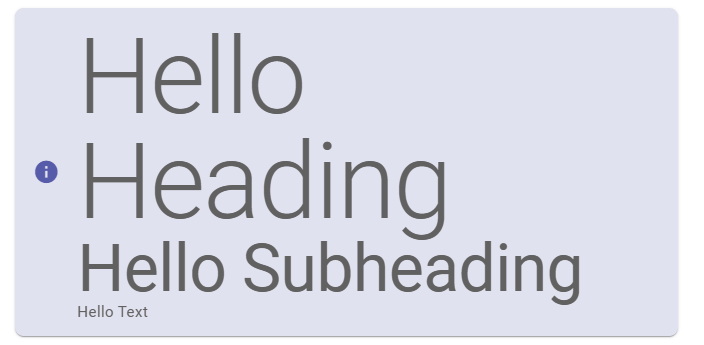 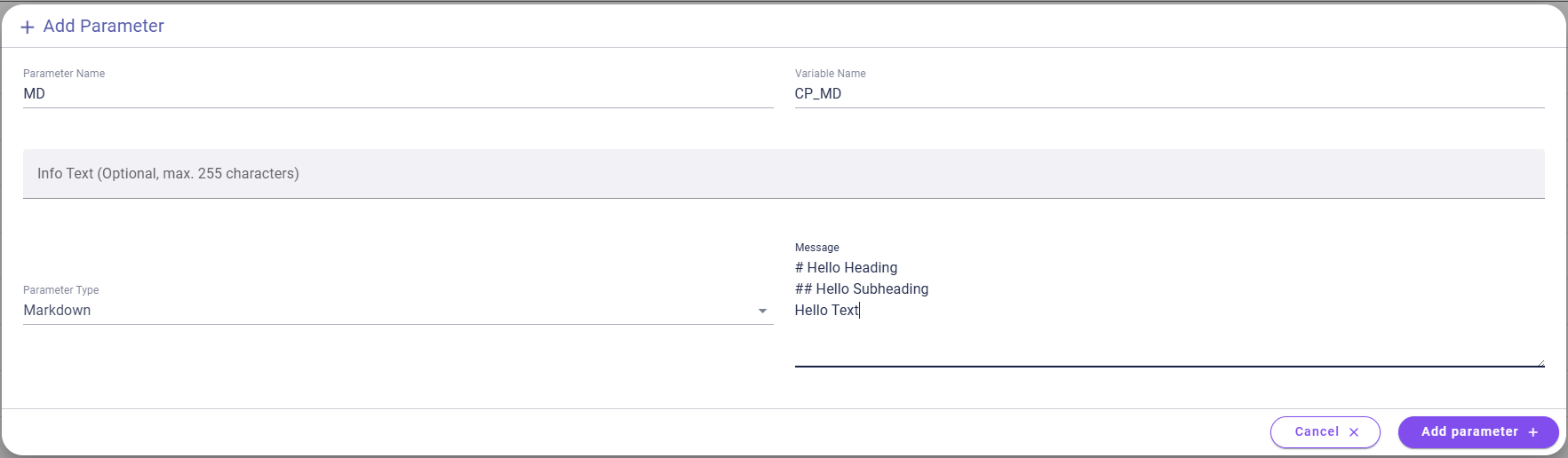 | CP_MD= | Default Value: This is the value that is displayed to the user by default for this configuration parameter when a task is created from this template. It can be left empty. If used, you can use typical Markdown for styling. Since there is no option to edit this during task creation, it is usually used for explicit explanations to the user. |
| CRON |  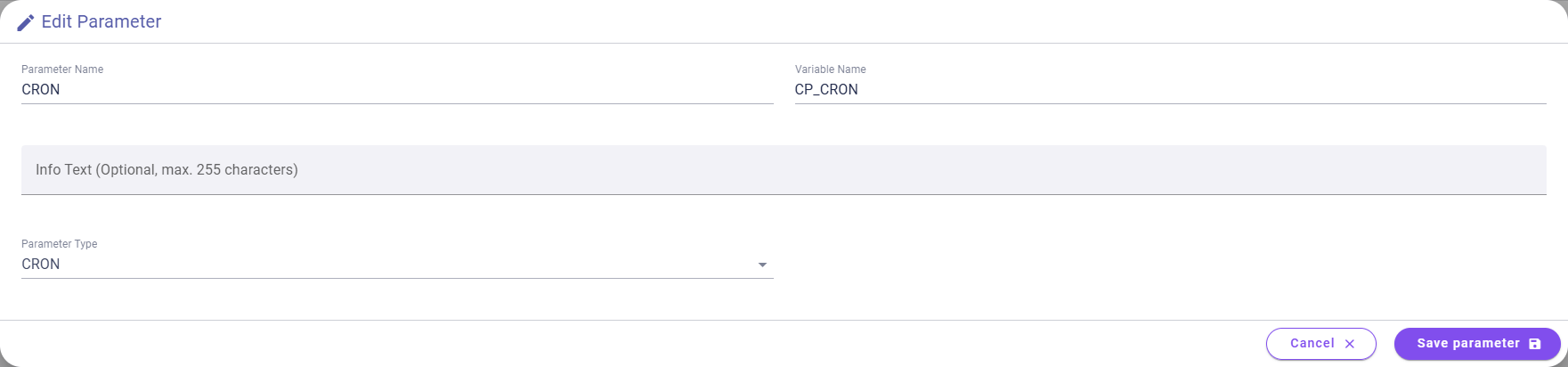 | CP_CRON=0,30 * * * * | This is a CRON expression that can be used for scheduling or similar inputs. |
| Type Filter | 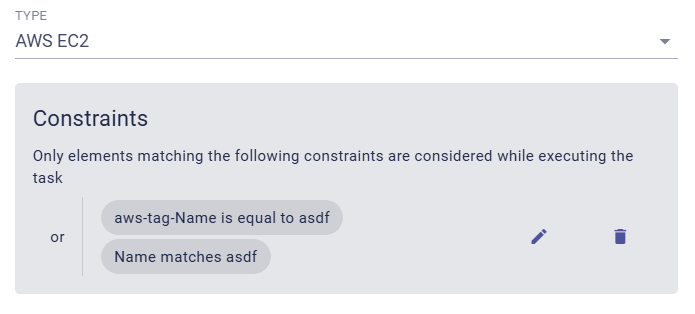 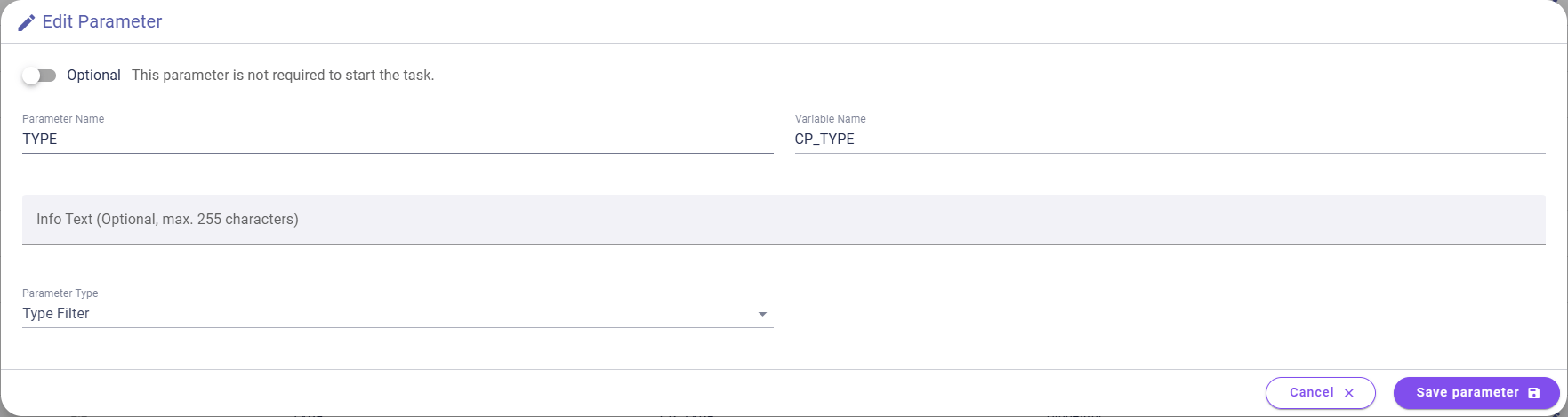 | CP_TYPE={"attributeNames":[],"names":["AWS EC2"],"condition":{"operator":"or","condition":[{"attributeName":"aws-tag-Name","operator":"equal_to","value":"asdf","conditionType":"atomic"},{"attributeName":"Name","operator":"matches","value":"asdf","conditionType":"atomic"}],"conditionType":"nested"}} | A type filter dialog which can be used to create queries against Qbilon’s read API, cf. Reading from Qbilon. |
| Relation Filter | 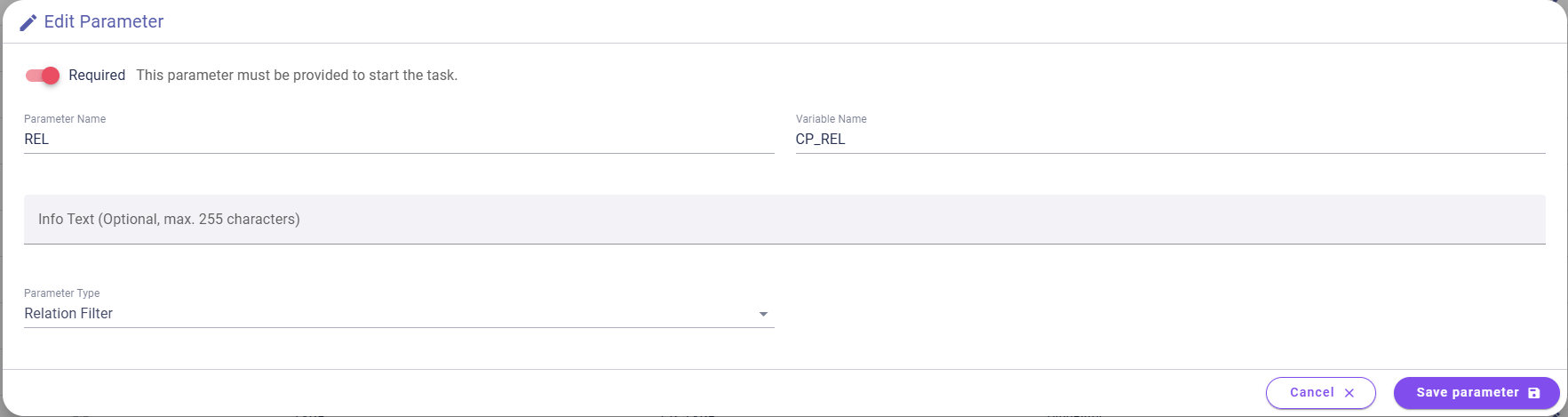 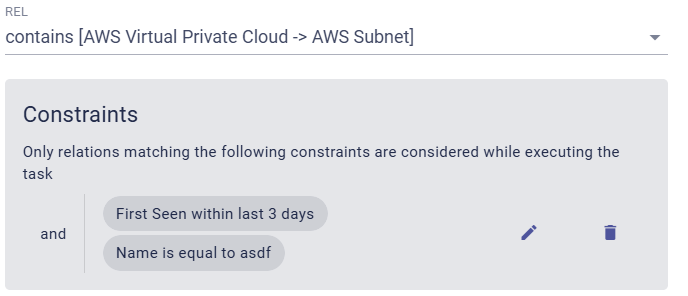 | CP_REL={"attributeNames":[],"names":["contains [AWS Virtual Private Cloud -> AWS Subnet]"],"condition":{"operator":"and","condition":[{"attributeName":"First Seen","operator":"within","value":"-P3DT","conditionType":"atomic"},{"attributeName":"Name","operator":"equal_to","value":"asdf","conditionType":"atomic"}],"conditionType":"nested"}} | A relation filter dialog which can be used to create queries against Qbilon’s read API, cf. Reading from Qbilon. |
Deleting CTTs
Once you create a task template, it will appear in the templates list in theAutomations section. You can delete each CTT by clicking on the trash icon.
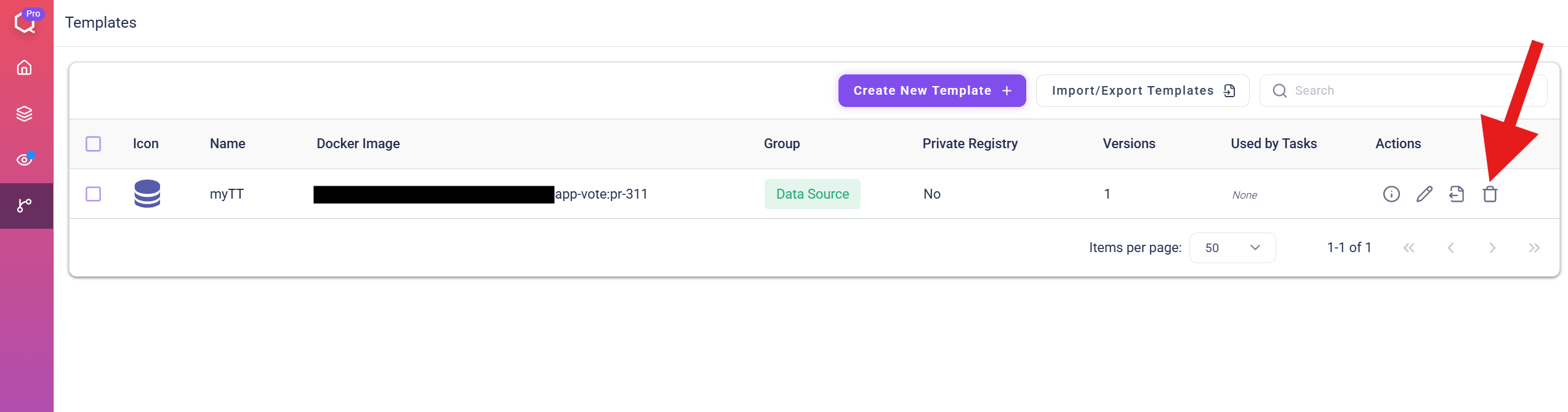
You can only delete task templates that are not being used in any automation. Once a task template is used in an automation, the trash icon will be disabled. You will first have to remove the corresponding task from the automation before deleting the task template.
Updating CTTs
At some point, it may be necessary to update or upgrade your custom task templates. For example, you may need to …- fix bugs in an older version of your task template or
- enhance the existing functionality of your task template.
Upgrade Template on the bottom toolbar to create newer versions of it. In the dialog that opens, you can change the task instance image to a newer Docker image. You can also add, remove, or change the configuration parameters that you defined for that task template.
For example, let’s say you created a “My Custom Task” task template with the task instance image “mytask:v1,” and now you want to upgrade it. In the “Basic Information” section, change the image to “mytask:v2” (you can choose a different image and version).
From now on, you will see an orange info icon in all tasks in your automations that use the old version of your task template. This icon alerts users that a newer version of the task template is available for one of the tasks in the automation.
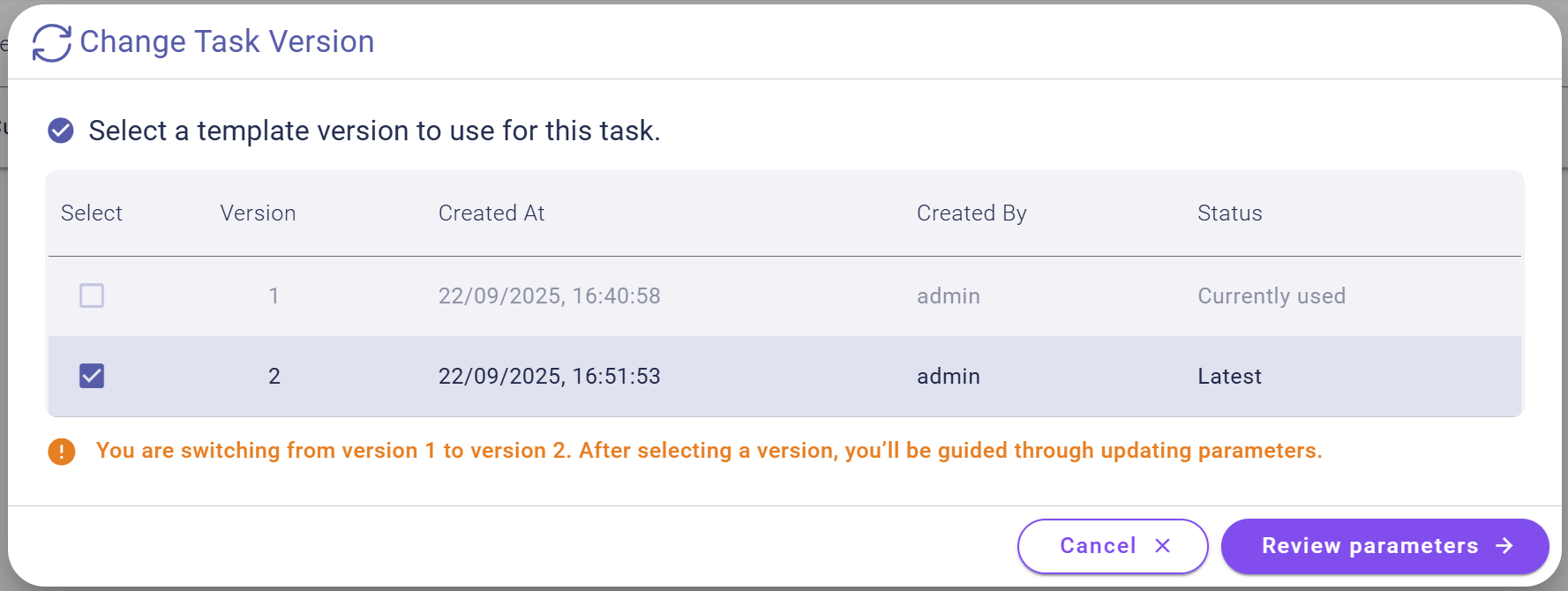
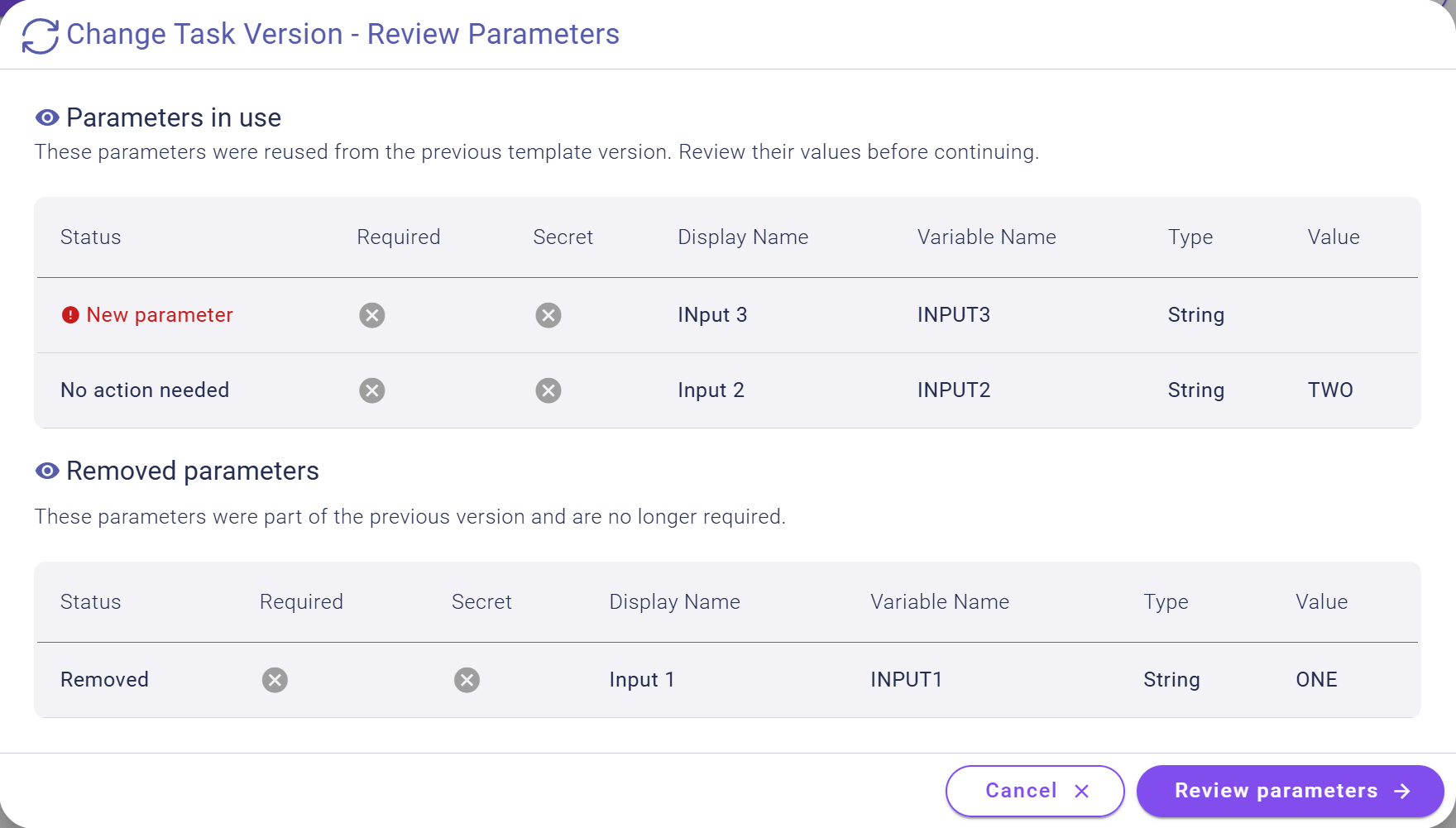
As soon as you click on the upgrade task template icon for a task, Qbilon will guide you through the upgrade process. For example, you can choose which version of the template to upgrade to.
Importing & Exporting CTTs
To make sharing and copying custom task templates across different Qbilon instances as easy as possible, we introduced the ability to export custom task templates from one instance and import them into another. To do this, go toAutomations → Task Templates, where you will be presented with two options:
- Export all templates at once in a ZIP folder. To do this, click on the
Import/Export Templatesbutton in the top right corner. - Export a single template. Select one existing task template from the list and click
Export Selectedin the bottom toolbar.
Import/Export Templates button and select Import Templates. You can choose to upload either a single template or a batch of templates.